'%3e%3cpath%20d='M150.127%20195.325C233.04%20195.325%20300.255%20168.696%20300.255%20135.848C300.255%20103%20233.04%2076.3709%20150.127%2076.3709C67.2143%2076.3709%200%20103%200%20135.848C0%20168.696%2067.2143%20195.325%20150.127%20195.325Z'%20fill='white'/%3e%3cpath%20d='M231.093%20118.256L150.117%20-0.000183105L69.1527%20118.256C68.1365%20119.748%2067.5967%20121.294%2067.5967%20122.871C67.5967%20136.017%20104.538%20146.666%20150.117%20146.666C195.697%20146.666%20232.638%20136.007%20232.638%20122.871C232.638%20121.294%20232.098%20119.748%20231.082%20118.256H231.093Z'%20fill='%2301A9F2'/%3e%3cpath%20d='M150.106%20356.844L98.7265%20281.5L62.3035%20311.117L25.4253%20257.017L50.787%20239.721L68.8556%20266.226L105.279%20236.62L150.106%20302.363L194.934%20236.62L231.357%20266.226L270.045%20209.48L295.407%20226.776L237.898%20311.117L201.475%20281.5L150.106%20356.844Z'%20fill='white'/%3e%3cpath%20d='M592.168%20165.22V237.908H561.482V171.825C561.482%20153.884%20551.807%20143.034%20535.051%20143.034C516.644%20143.034%20505.318%20156.011%20505.318%20175.604V237.908H474.875V171.349C474.875%20153.407%20464.968%20142.791%20448.445%20142.791C429.804%20142.791%20418.711%20156.011%20418.711%20176.07V237.908H388.025V118.964H418.711V134.301C426.502%20122.033%20440.421%20115.418%20458.13%20115.418C477.014%20115.418%20490.7%20122.975%20498.247%20135.953C506.747%20123.208%20521.608%20115.418%20540.725%20115.418C572.819%20115.418%20592.179%20135.476%20592.179%20165.22H592.168Z'%20fill='white'/%3e%3cpath%20d='M899.48%2080.2534C899.48%2068.2182%20909.388%2059.4856%20920.248%2059.4856C931.574%2059.4856%20941.248%2068.9274%20941.248%2080.2534C941.248%2091.3465%20931.574%20100.788%20920.248%20100.788C909.155%20100.788%20899.48%2092.0557%20899.48%2080.2534Z'%20fill='white'/%3e%3cpath%20d='M935.832%20118.955H905.146V237.899H935.832V118.955Z'%20fill='white'/%3e%3cpath%20d='M1140.2%20118.955H1173L1099.84%20288.644H1067.5L1090.6%20237.666L1043.42%20118.955H1076.45L1107.37%20204.81L1140.18%20118.955H1140.2Z'%20fill='white'/%3e%3cpath%20d='M883.182%20115.418H815.904C781.45%20115.418%20755.008%20137.837%20755.008%20171.825C755.008%20206.756%20778.846%20228.466%20815.904%20228.466C831.951%20228.699%20847.288%20231.059%20847.288%20246.64C847.288%20259.617%20835.962%20267.175%20817.555%20267.175C799.148%20267.175%20784.985%20254.664%20781.915%20239.326L756.66%20246.873C763.741%20274.722%20787.346%20292.188%20817.312%20292.188C856.963%20292.188%20876.313%20272.838%20876.313%20249.233C876.313%20234.605%20869.231%20223.036%20855.545%20215.721C868.522%20206.047%20877.022%20190.709%20877.022%20171.825C877.022%20160.986%20871.412%20149.3%20863.145%20140.674H883.182V115.418ZM815.904%20203.919C797.264%20203.919%20782.392%20192.117%20782.392%20171.825C782.392%20151.534%20799.148%20139.964%20815.904%20139.964C832.66%20139.964%20849.416%20151.29%20849.416%20171.825C849.416%20188.814%20835.497%20203.919%20815.904%20203.919Z'%20fill='white'/%3e%3cpath%20d='M737.426%20237.906V118.962H708.158V136.088C698.685%20121.481%20682.796%20115.426%20668.983%20115.426C633.587%20115.426%20608.087%20143.509%20608.087%20179.148C608.087%20214.788%20633.1%20241.452%20668.03%20241.452C682.426%20241.452%20698.24%20235.08%20708.148%20220.917V237.906H737.415H737.426ZM673.471%20213.835C653.645%20213.835%20638.308%20199.207%20638.308%20178.429C638.308%20157.65%20653.889%20143.032%20673.704%20143.032C694.705%20143.032%20709.1%20160.021%20709.1%20178.429C709.1%20196.836%20694.472%20213.835%20673.46%20213.835H673.471Z'%20fill='white'/%3e%3cpath%20d='M1003.29%20111.085C1003.29%2098.5315%201011.17%2091.8842%201023.98%2091.8842C1028.9%2091.8842%201033.83%2092.6251%201037.77%2093.853L1042.2%2068.0043C1038.02%2066.7765%201027.43%2064.7971%201021.27%2064.7971C994.18%2064.7971%20972.607%2081.786%20972.607%20110.355V118.961H956.889V144.216H972.607V164.519V237.915H1003.29V144.216H1038.46V118.961H1003.29V111.096V111.085Z'%20fill='white'/%3e%3c/g%3e%3cdefs%3e%3cclipPath%20id='clip0_1_3'%3e%3crect%20width='1173'%20height='356.842'%20fill='white'/%3e%3c/clipPath%3e%3c/defs%3e%3c/svg%3e)

App Version: Configuration Download and Usage
Overview
The App Version section is used to manage application versions and retrieve configuration files generated based on App Config settings.
It allows you to download the configuration that the application uses for a specific app version in different states — from the baseline configuration embedded into the build to the current configuration resolved with segmentation and additional user conditions.
Purpose of App Version
The App Version section serves two primary purposes:
1. Application version management
Each application version is registered in the system and used as an independent context when resolving configuration logic.
App versions are used through Segmentation — to define rules that apply only to specific app versions or version ranges.
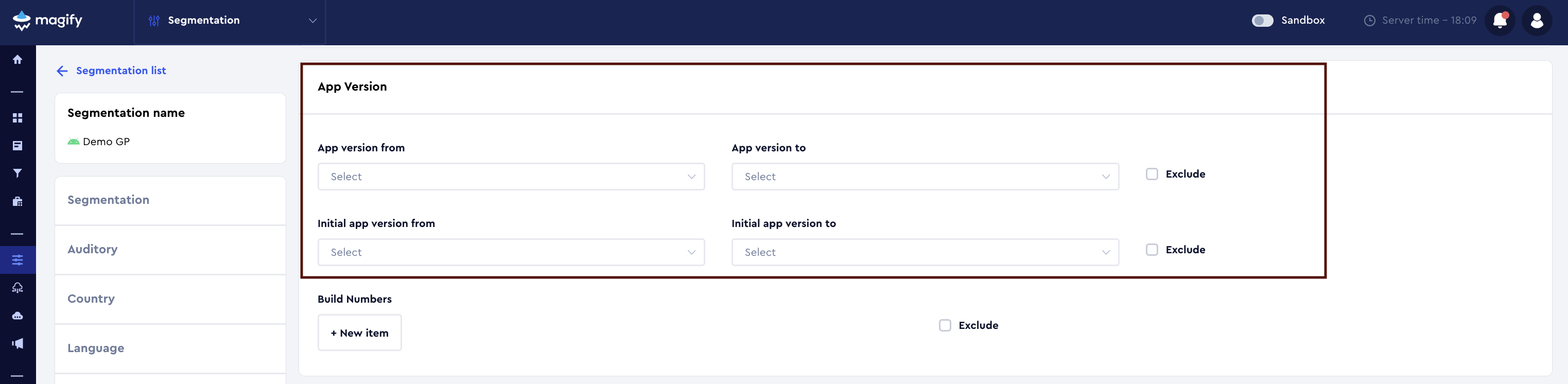
Segments are applied across multiple system entities, including campaigns, features, experiments, and configuration resolution logic.
In addition, app versions are used in LTO campaign settings, where campaign behavior may depend on the application version.
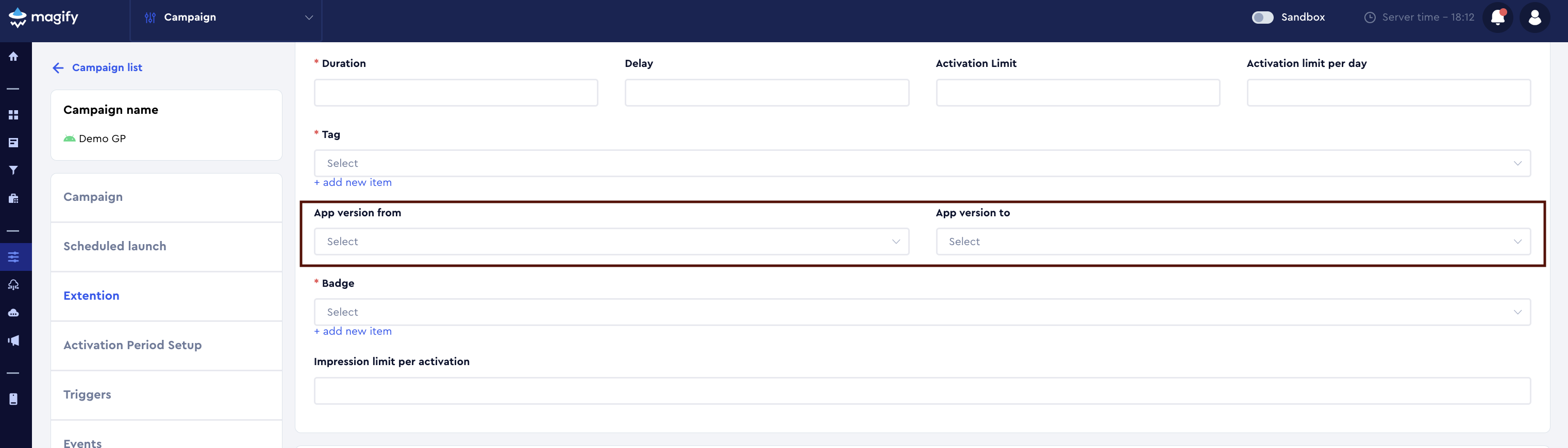
2. Configuration retrieval for a specific version
The App Version section allows you to download JSON configuration files calculated for a selected application version and execution context.
How App Versions Appear in the System
App versions are created and managed inside the application card and can appear in the system either automatically or manually.
When a version is created, the following attributes are defined:
- version number;
- publication date (Published At);
- verification status (Is Verified).
Automatic Version Creation
A new version is created automatically when the application sends a configuration request with a version number that does not yet exist in the system.
This usually happens when a new build is launched and makes its first request to the backend.
In this case:
- the version is created automatically;
- Published At is set to the version creation date;
- the version is created without Is Verified and is considered unverified.
Manual Version Creation
App versions can also be added manually in advance, before a new release goes live.
This is recommended when you want to prepare configuration, segmentation, or analytics ahead of the rollout.
Versions are created in:
Configuration > Remote Config > Application
How to add a version manually
- Open the application card.
- Go to the versions list.
- Click + Add Version.
- Enter the version number and save the changes.
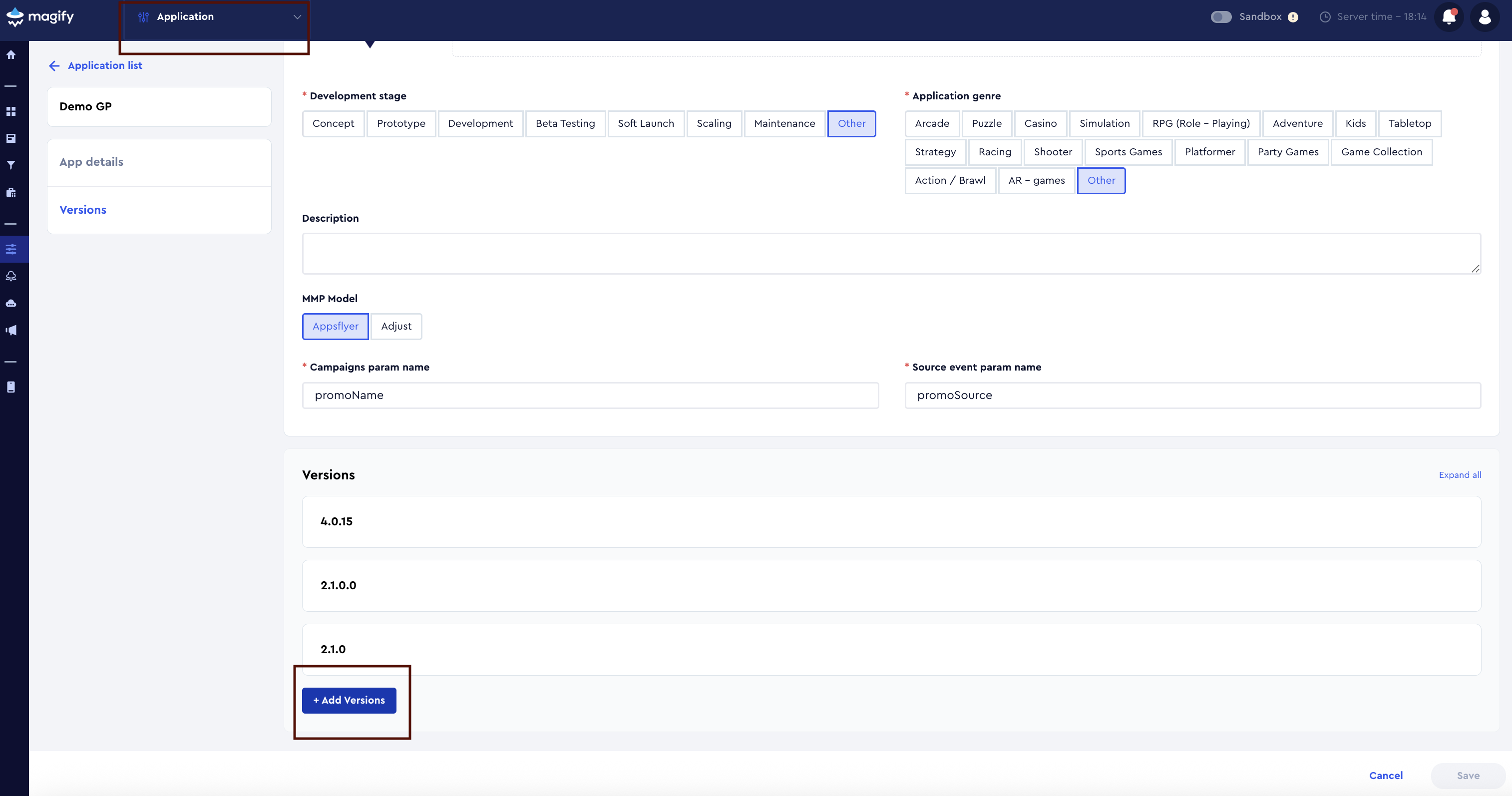
After saving:
- the version becomes available in the system;
- Published At is filled with the creation date;
- the version remains unverified until the release is confirmed.
Version Verification (Is Verified)
Is Verified indicates that the application version has been released to real users.
Version verification is performed in the same application card where versions are managed.
How to verify a version
- Open Configuration > Remote Config > Application.
- Locate the required version in the versions list.
- If needed, update Published At to match the actual store release date.
- Enable the Is Verified checkbox next to the version.
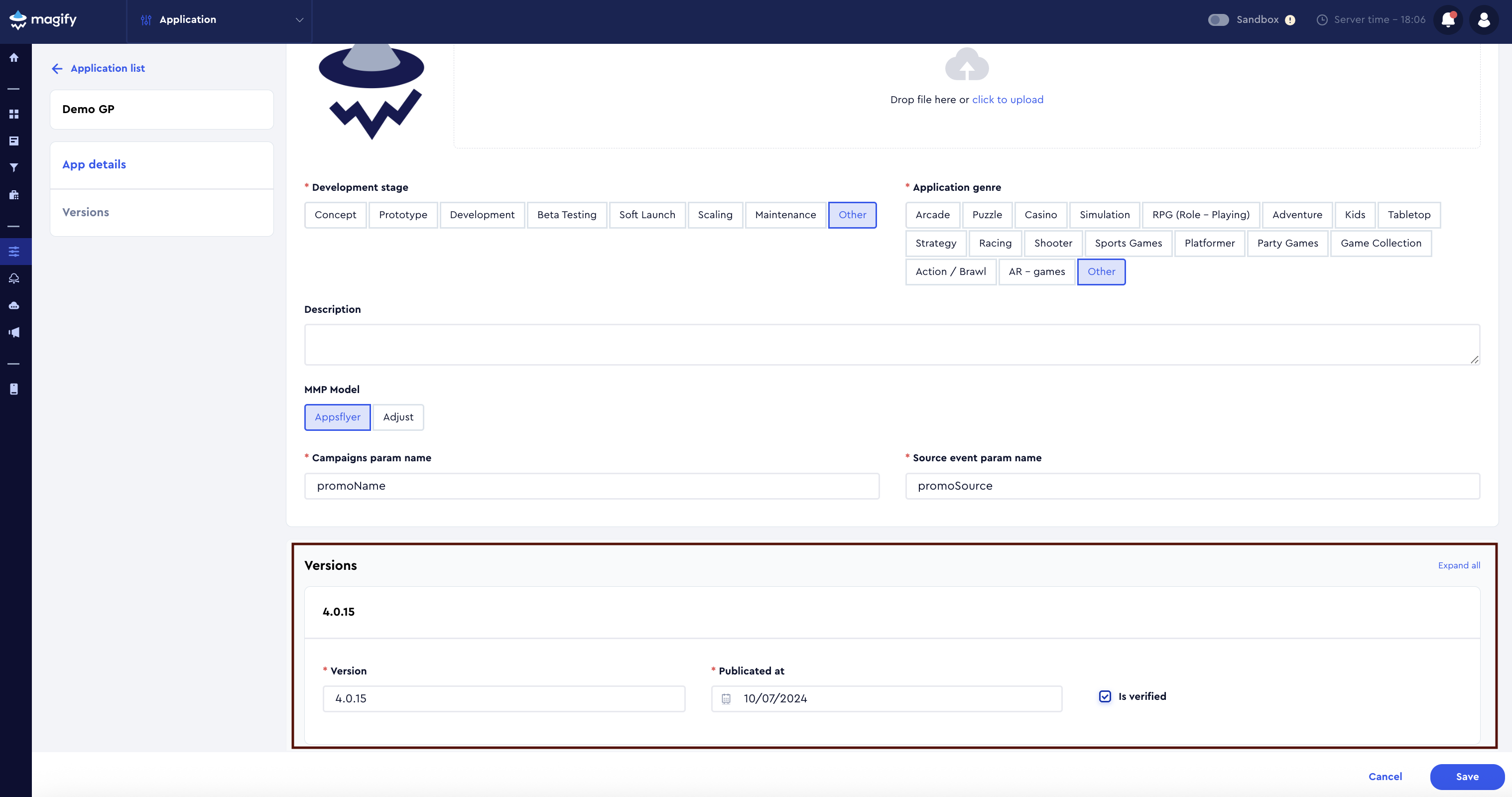
After verification:
- the version is treated as released in production;
- it is considered an active production version by the system;
- its status and publication date are used in analytics and reports.
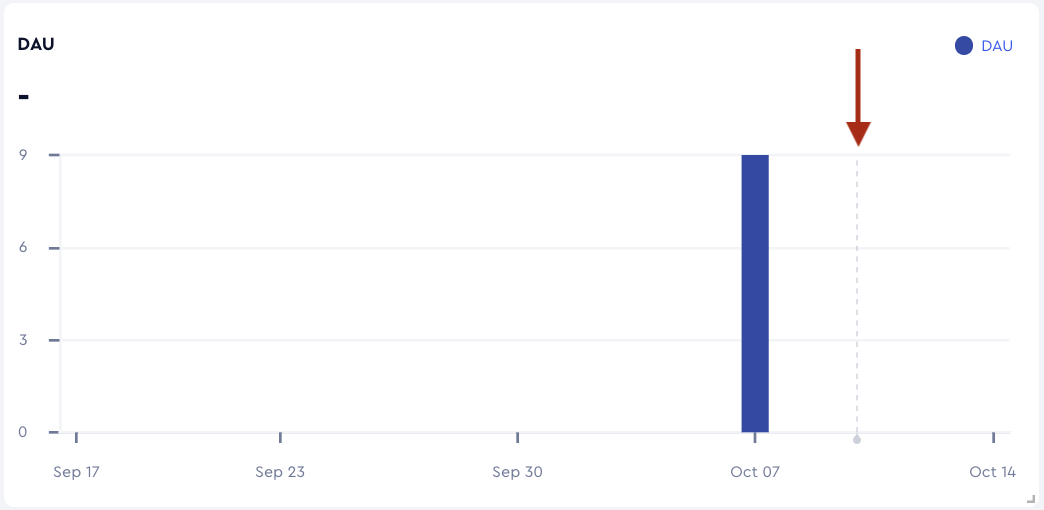
Example dashboard with a dashed line indicating the app version release date
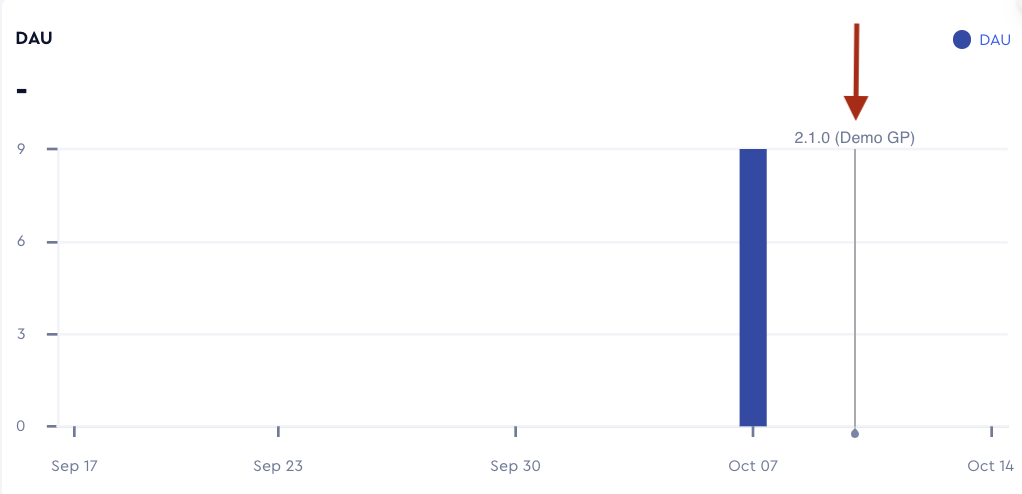
Hovering over the dashed line displays the application version number
Managing Versions in App Version
The App Version section displays all registered application versions and provides tools to work with them.
You can:
- filter versions by application;
- search for a version by number;
- customize visible table columns;
- sort versions by application or version name.
Each table row represents a specific app version and provides actions for downloading configuration files related to that version.
Column titles such as Get Default, Get Current, and Get Config with custom parameters indicate the available configuration types.
To start a download, click the highlighted configuration name (for example, Default config) inside the corresponding column.
Clicking the configuration name triggers generation and download of the configuration file in JSON format.
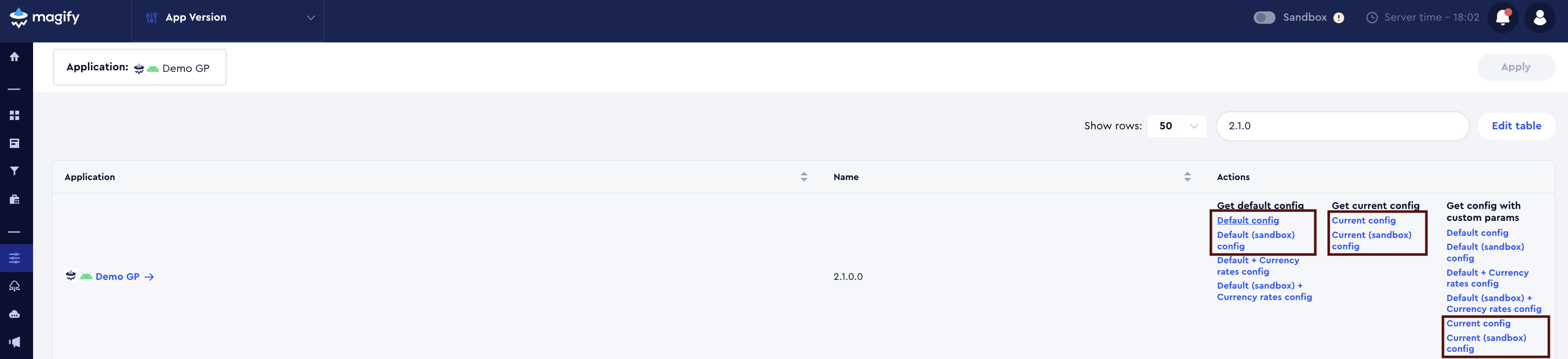
Configuration Types in App Version
For each app version, the following configuration types are available:
- Get Default config: download Default config
- Get Default (sandbox) config: download Default (sandbox) config
- Get Current config: download Current config
- Get Current (sandbox) config: download Current (sandbox) config
- Get Config with custom parameters: download Current config
- Get Config with custom parameters (sandbox): download Current (sandbox) config
Each type represents a distinct way of resolving and downloading a configuration file for the selected app version.
Default Config
Default config is the baseline configuration embedded into the application build for the selected app version.
Default (sandbox) config is the same baseline configuration, generated using sandbox data.
Purpose
- Ensures a predictable startup state of the application (for example, on first launch without internet connectivity).
- Used as the configuration embedded into the build before the first successful server request.
- Defines the base configuration on top of which Remote Config and segmentation rules are applied.
Important Notes
- Default configurations are generated only from the main App Config block (baseline context).
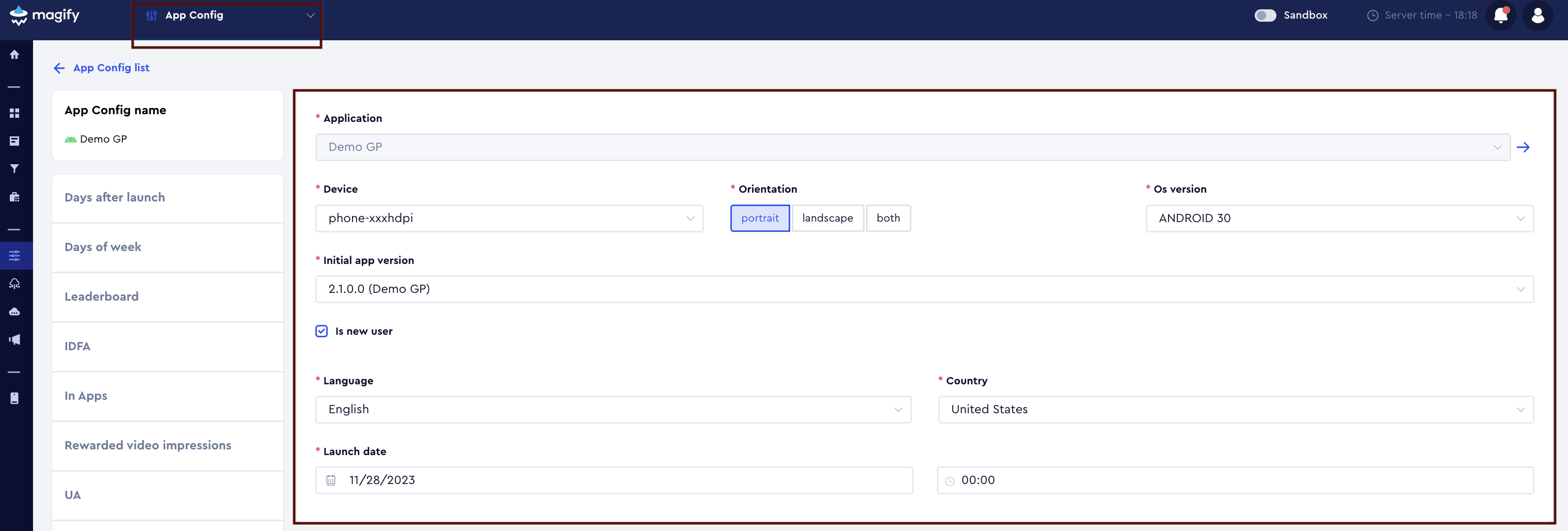
- Additional parameters (Days After Launch, UA, A/B tests, etc.) do not affect default configurations in either production or sandbox mode.
Current Config
Current config is the active configuration delivered to the application from the server when internet connectivity is available.
Current (sandbox) config is the same configuration calculated using sandbox data.
Purpose
- Inspect the configuration currently delivered to users.
- Validate changes in Remote Config rules, segmentation, campaigns, features, and experiments without releasing a new app version.
- Safely test configuration logic using sandbox data.
Key Logic
- Current configurations include all active rules: segmentation, campaigns, features, and experiments.
- The baseline context is taken from the main App Config block.
- The only difference between production and sandbox is the data source.
Config with Custom Parameters
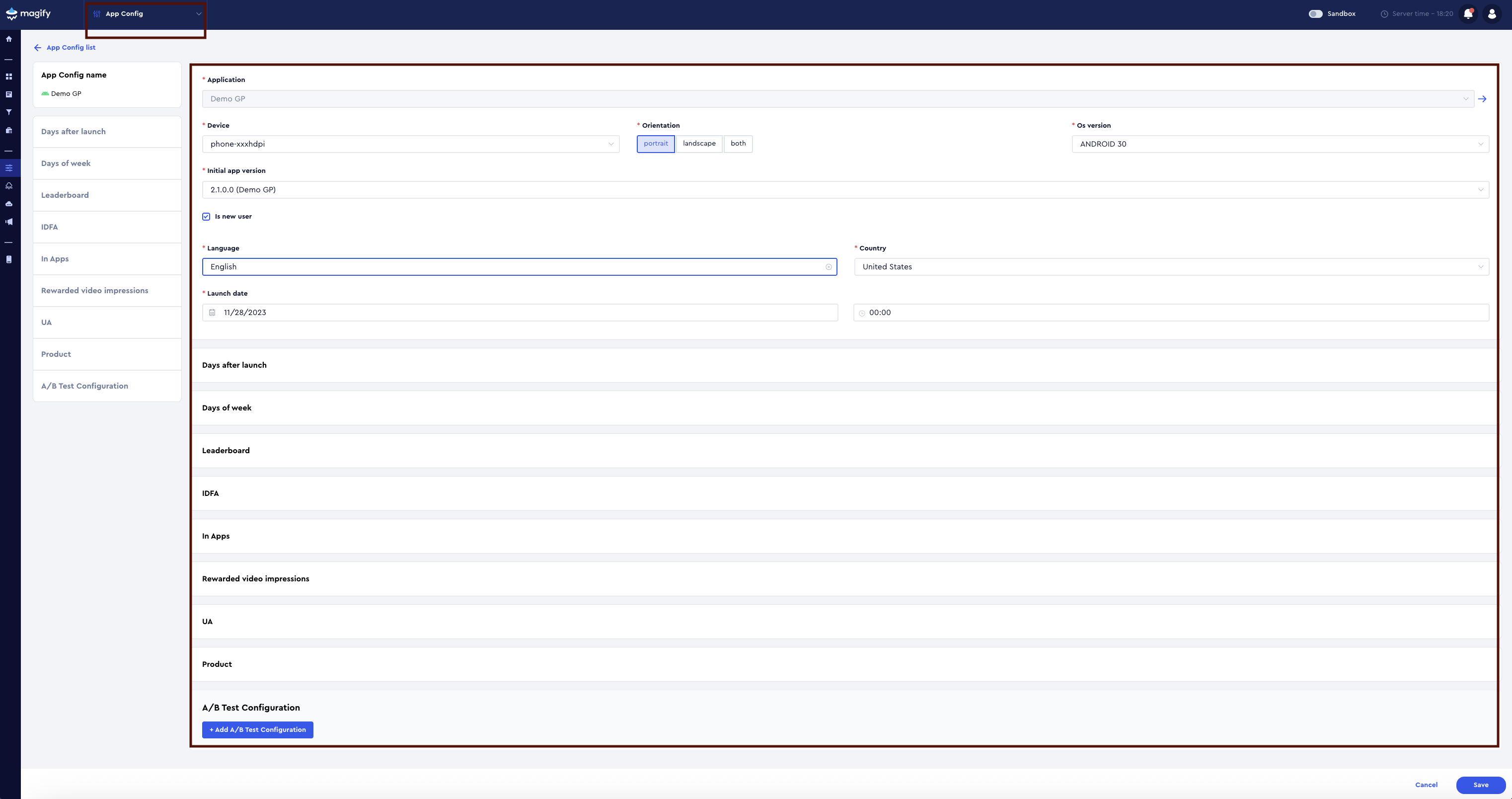
Get Config with custom parameters is a separate configuration type used to validate a specific user scenario.
It is resolved using current configuration logic but with an extended user context.
Variants
- Get Config with custom parameters — production data
- Get Config with custom parameters (sandbox) — sandbox data
Custom Parameters
May include:
- Days After Launch
- Days of Week
- IDFA
- In-App Purchases (revenue / count)
- Rewarded Video Impressions
- UA fields (Media Source / Campaign / Ad Group)
- Products
- A/B test parameters
Purpose
- QA and debugging: “What configuration does a user with condition X receive under scenario Y?”
- Validation of A/B tests and narrow segmentation rules.
- Reproducing real-user cases without impacting production.
Relationship Between App Version and App Config
App Config defines the context from which all configurations are resolved.
- The main App Config block defines the baseline context (device, OS, country, language, etc.) > used for Default config and Current config.
- Additional parameters are applied when a more specific user scenario is required > used in Get Config with custom parameters.
Configuration Application Logic in the App
The application always uses the last successfully fetched current config.
How it works
- The app requests the current config.
- If the config is successfully fetched and valid:
- it is applied;
- saved locally;
- used for subsequent launches.
- If a subsequent request fails or returns an invalid config:
- the app continues using the last working current config.
Configuration Validation
After downloading a configuration, it is recommended to inspect its structure and contents.
You can use any convenient JSON tool, for example:
Or any other tool suitable for viewing and analyzing JSON files.
Configuration validation is especially useful for QA, debugging, and analyzing configs generated with custom parameters.