'%3e%3cpath%20d='M150.127%20195.325C233.04%20195.325%20300.255%20168.696%20300.255%20135.848C300.255%20103%20233.04%2076.3709%20150.127%2076.3709C67.2143%2076.3709%200%20103%200%20135.848C0%20168.696%2067.2143%20195.325%20150.127%20195.325Z'%20fill='white'/%3e%3cpath%20d='M231.093%20118.256L150.117%20-0.000183105L69.1527%20118.256C68.1365%20119.748%2067.5967%20121.294%2067.5967%20122.871C67.5967%20136.017%20104.538%20146.666%20150.117%20146.666C195.697%20146.666%20232.638%20136.007%20232.638%20122.871C232.638%20121.294%20232.098%20119.748%20231.082%20118.256H231.093Z'%20fill='%2301A9F2'/%3e%3cpath%20d='M150.106%20356.844L98.7265%20281.5L62.3035%20311.117L25.4253%20257.017L50.787%20239.721L68.8556%20266.226L105.279%20236.62L150.106%20302.363L194.934%20236.62L231.357%20266.226L270.045%20209.48L295.407%20226.776L237.898%20311.117L201.475%20281.5L150.106%20356.844Z'%20fill='white'/%3e%3cpath%20d='M592.168%20165.22V237.908H561.482V171.825C561.482%20153.884%20551.807%20143.034%20535.051%20143.034C516.644%20143.034%20505.318%20156.011%20505.318%20175.604V237.908H474.875V171.349C474.875%20153.407%20464.968%20142.791%20448.445%20142.791C429.804%20142.791%20418.711%20156.011%20418.711%20176.07V237.908H388.025V118.964H418.711V134.301C426.502%20122.033%20440.421%20115.418%20458.13%20115.418C477.014%20115.418%20490.7%20122.975%20498.247%20135.953C506.747%20123.208%20521.608%20115.418%20540.725%20115.418C572.819%20115.418%20592.179%20135.476%20592.179%20165.22H592.168Z'%20fill='white'/%3e%3cpath%20d='M899.48%2080.2534C899.48%2068.2182%20909.388%2059.4856%20920.248%2059.4856C931.574%2059.4856%20941.248%2068.9274%20941.248%2080.2534C941.248%2091.3465%20931.574%20100.788%20920.248%20100.788C909.155%20100.788%20899.48%2092.0557%20899.48%2080.2534Z'%20fill='white'/%3e%3cpath%20d='M935.832%20118.955H905.146V237.899H935.832V118.955Z'%20fill='white'/%3e%3cpath%20d='M1140.2%20118.955H1173L1099.84%20288.644H1067.5L1090.6%20237.666L1043.42%20118.955H1076.45L1107.37%20204.81L1140.18%20118.955H1140.2Z'%20fill='white'/%3e%3cpath%20d='M883.182%20115.418H815.904C781.45%20115.418%20755.008%20137.837%20755.008%20171.825C755.008%20206.756%20778.846%20228.466%20815.904%20228.466C831.951%20228.699%20847.288%20231.059%20847.288%20246.64C847.288%20259.617%20835.962%20267.175%20817.555%20267.175C799.148%20267.175%20784.985%20254.664%20781.915%20239.326L756.66%20246.873C763.741%20274.722%20787.346%20292.188%20817.312%20292.188C856.963%20292.188%20876.313%20272.838%20876.313%20249.233C876.313%20234.605%20869.231%20223.036%20855.545%20215.721C868.522%20206.047%20877.022%20190.709%20877.022%20171.825C877.022%20160.986%20871.412%20149.3%20863.145%20140.674H883.182V115.418ZM815.904%20203.919C797.264%20203.919%20782.392%20192.117%20782.392%20171.825C782.392%20151.534%20799.148%20139.964%20815.904%20139.964C832.66%20139.964%20849.416%20151.29%20849.416%20171.825C849.416%20188.814%20835.497%20203.919%20815.904%20203.919Z'%20fill='white'/%3e%3cpath%20d='M737.426%20237.906V118.962H708.158V136.088C698.685%20121.481%20682.796%20115.426%20668.983%20115.426C633.587%20115.426%20608.087%20143.509%20608.087%20179.148C608.087%20214.788%20633.1%20241.452%20668.03%20241.452C682.426%20241.452%20698.24%20235.08%20708.148%20220.917V237.906H737.415H737.426ZM673.471%20213.835C653.645%20213.835%20638.308%20199.207%20638.308%20178.429C638.308%20157.65%20653.889%20143.032%20673.704%20143.032C694.705%20143.032%20709.1%20160.021%20709.1%20178.429C709.1%20196.836%20694.472%20213.835%20673.46%20213.835H673.471Z'%20fill='white'/%3e%3cpath%20d='M1003.29%20111.085C1003.29%2098.5315%201011.17%2091.8842%201023.98%2091.8842C1028.9%2091.8842%201033.83%2092.6251%201037.77%2093.853L1042.2%2068.0043C1038.02%2066.7765%201027.43%2064.7971%201021.27%2064.7971C994.18%2064.7971%20972.607%2081.786%20972.607%20110.355V118.961H956.889V144.216H972.607V164.519V237.915H1003.29V144.216H1038.46V118.961H1003.29V111.096V111.085Z'%20fill='white'/%3e%3c/g%3e%3cdefs%3e%3cclipPath%20id='clip0_1_3'%3e%3crect%20width='1173'%20height='356.842'%20fill='white'/%3e%3c/clipPath%3e%3c/defs%3e%3c/svg%3e)

Segmented and A/B Test Features
Overview
Magify allows features to be targeted to specific user groups through segmentation and A/B testing. This provides flexibility in delivering customized experiences and testing feature impact across different audiences.
Feature Selection Logic
When the client requests a configuration, Magify evaluates applicable feature values in the following priority order:
- A/B Test assignment – If the user matches any active A/B test group.
- Segmented value – If no A/B test is matched but the user fits a defined segment.
- Default value – Used if no match is found.
Creating a Segmented Feature
To define segment-based behavior for a feature:
- Go to an existing Application Feature (Navigate to Remote Config → Configurations → Application Feature).
- Scroll to or open the Segmented Application Feature section in the left navigation menu.
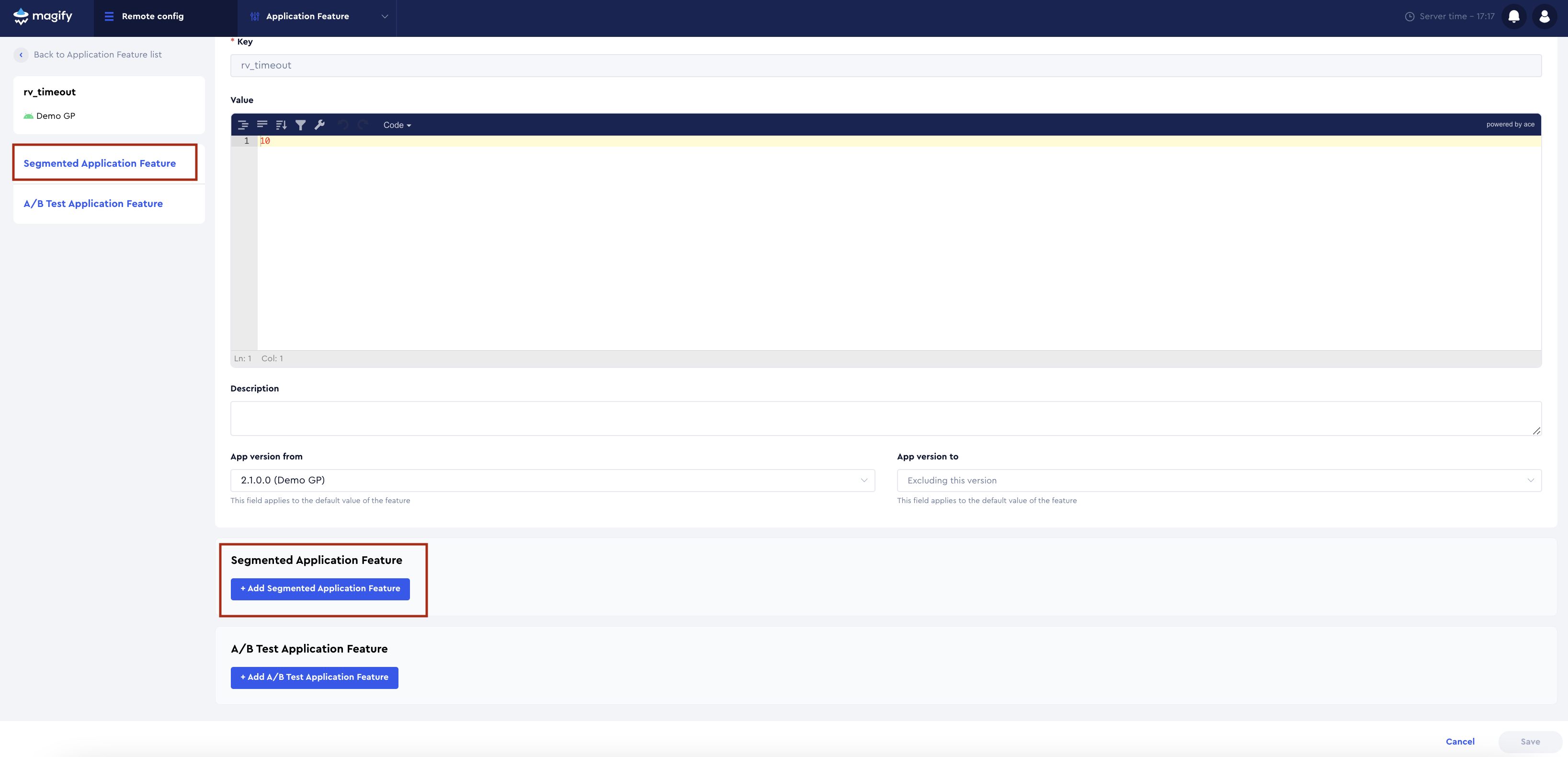
- Click +Add Segmented Application Feature.
- Select one or more segments in Segmentationsfield (looked up based on the selected application).
- You can optionally exclude specific segments using the Exclude segmentations field.
- Define the
Valueto be delivered to users in the selected segments. - Repeat this process to assign different values to other segments, if needed.
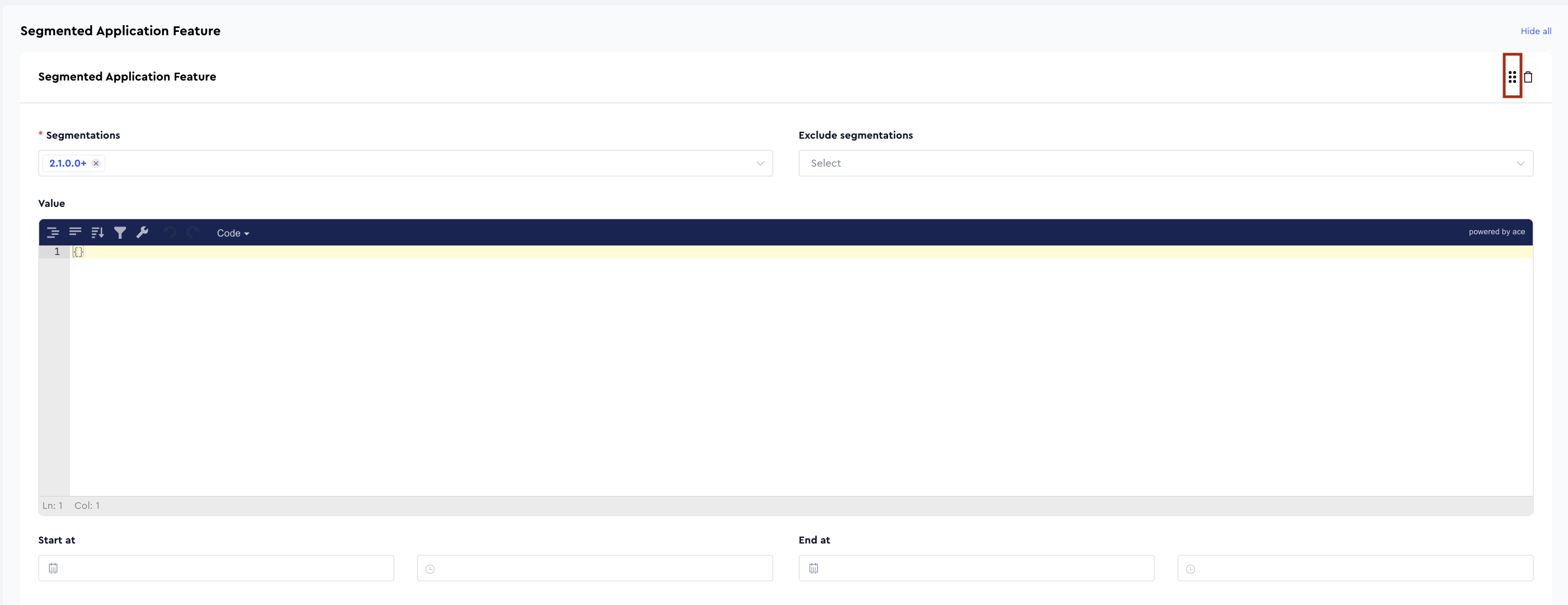
Order matters: If a user matches multiple segment rules, they will receive the value from the first applicable segment in the list. You can reorder segment entries by dragging them in the UI:
Start at / End at
The Start at and End at fields define the time window during which a segmented feature value is active and delivered in the configuration for users matching the specified segment. Times are specified in UTC timezone.
- Start at – The date and time from which the feature value becomes active. Before this time, users will receive another applicable value (e.g., from a different segment or the default).
- End at – The date and time after which the feature value is no longer active. Once this time is reached, users will receive the next available value in the evaluation order (such as another segment or the default).
Notes:
- If only Start at is set, the feature value will become active at the specified time and remain active indefinitely.
- If only End at is set, the value will be active immediately (if the user qualifies for the segment) and expire at the defined time.
- These fields are available only for segmented application features. They cannot be used in default or A/B test configurations. ::
Filters and Statuses
The feature configuration interface supports a combination of filters and statuses that allow precise control over feature value delivery. Filters such as In-App Product Filters can be used to target users based on specific purchases, while statuses like Subscription Status, In-App Status, and Paying Status help define user eligibility based on their engagement and monetization activity. These tools ensure that feature values are shown only to users who match defined behavioral or transactional criteria. The same statuses and filters are used in campaign configurations. For more detailed information, refer to the Filters And Payment Statuses article.
Example: Conditional Booster Feature Distribution Logic
Scenario: The feature startup_booster_count defines how many boosters a user receives at the start of the game.
- Default value:
3 - Segmented value:
1— for users located in the United States, using any language except Spanish, and running app version 3.0.0 or higher
Result: Users from the US with a non-Spanish language and app version ≥ 3.0.0 receive 1; all others receive the default value 3.
Creating A/B Test Features
To assign different feature values to A/B test groups:
- First, create an A/B test in draft status—only tests in this status can be selected when configuring feature variations. For details, refer to the A/B Test article.
- Navigate to the feature you want to A/B test (Navigate to Remote Config → Configurations → Application Feature).
- Scroll to or open the A/B Test Application Feature section.
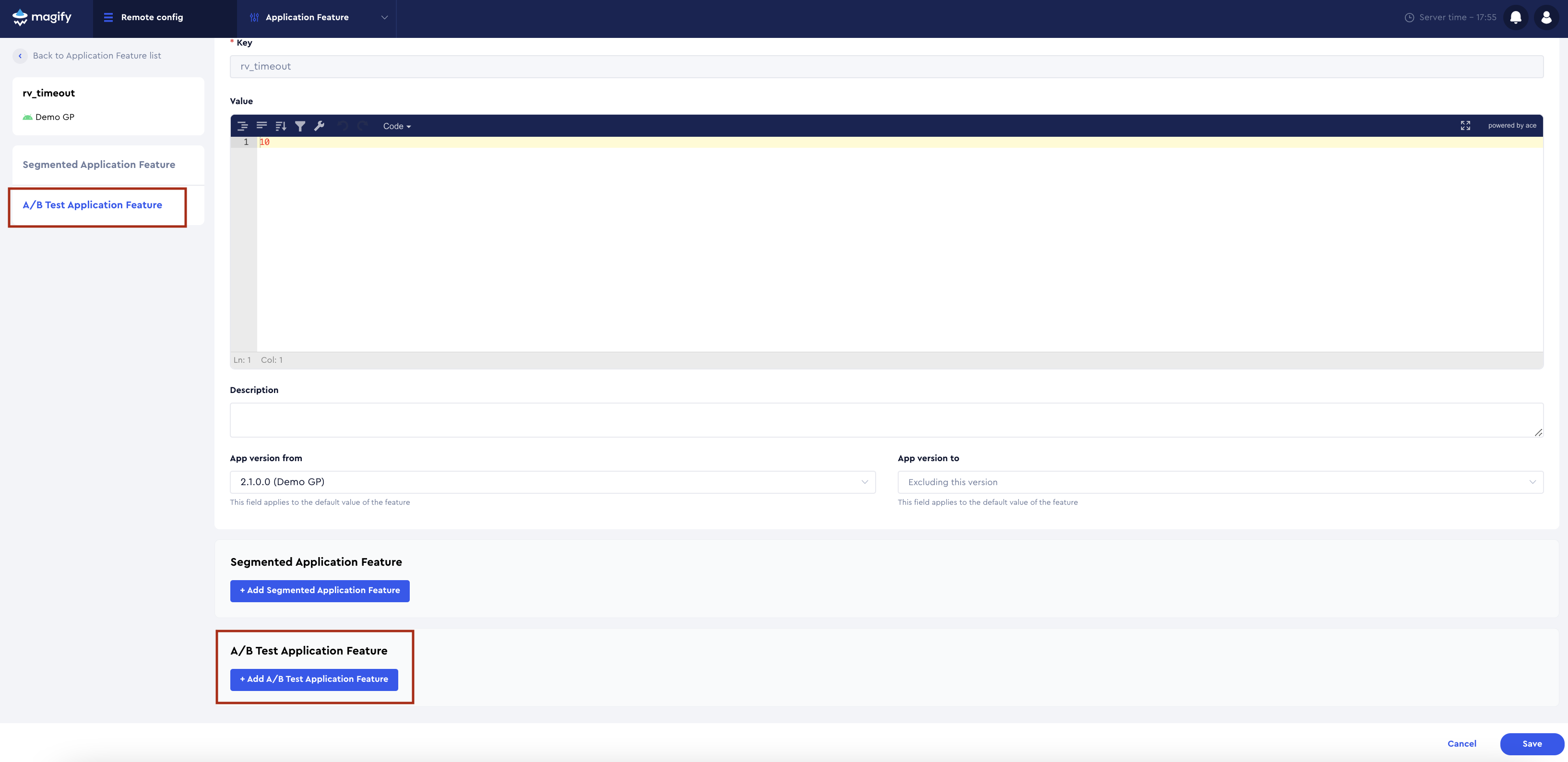
- Click +Add A/B Test Application Feature.
- Select the appropriate A/B test from the list — draft status tests are automatically populated in the dropdown — and assign the corresponding groups.
- Define the
Valuethat the selected group(s) should receive. - Repeat the process to define values for other groups in the same test.
- Click Save to apply changes.
- After completing these steps, the A/B test is ready to be launched.