'%3e%3cpath%20d='M150.127%20195.325C233.04%20195.325%20300.255%20168.696%20300.255%20135.848C300.255%20103%20233.04%2076.3709%20150.127%2076.3709C67.2143%2076.3709%200%20103%200%20135.848C0%20168.696%2067.2143%20195.325%20150.127%20195.325Z'%20fill='white'/%3e%3cpath%20d='M231.093%20118.256L150.117%20-0.000183105L69.1527%20118.256C68.1365%20119.748%2067.5967%20121.294%2067.5967%20122.871C67.5967%20136.017%20104.538%20146.666%20150.117%20146.666C195.697%20146.666%20232.638%20136.007%20232.638%20122.871C232.638%20121.294%20232.098%20119.748%20231.082%20118.256H231.093Z'%20fill='%2301A9F2'/%3e%3cpath%20d='M150.106%20356.844L98.7265%20281.5L62.3035%20311.117L25.4253%20257.017L50.787%20239.721L68.8556%20266.226L105.279%20236.62L150.106%20302.363L194.934%20236.62L231.357%20266.226L270.045%20209.48L295.407%20226.776L237.898%20311.117L201.475%20281.5L150.106%20356.844Z'%20fill='white'/%3e%3cpath%20d='M592.168%20165.22V237.908H561.482V171.825C561.482%20153.884%20551.807%20143.034%20535.051%20143.034C516.644%20143.034%20505.318%20156.011%20505.318%20175.604V237.908H474.875V171.349C474.875%20153.407%20464.968%20142.791%20448.445%20142.791C429.804%20142.791%20418.711%20156.011%20418.711%20176.07V237.908H388.025V118.964H418.711V134.301C426.502%20122.033%20440.421%20115.418%20458.13%20115.418C477.014%20115.418%20490.7%20122.975%20498.247%20135.953C506.747%20123.208%20521.608%20115.418%20540.725%20115.418C572.819%20115.418%20592.179%20135.476%20592.179%20165.22H592.168Z'%20fill='white'/%3e%3cpath%20d='M899.48%2080.2534C899.48%2068.2182%20909.388%2059.4856%20920.248%2059.4856C931.574%2059.4856%20941.248%2068.9274%20941.248%2080.2534C941.248%2091.3465%20931.574%20100.788%20920.248%20100.788C909.155%20100.788%20899.48%2092.0557%20899.48%2080.2534Z'%20fill='white'/%3e%3cpath%20d='M935.832%20118.955H905.146V237.899H935.832V118.955Z'%20fill='white'/%3e%3cpath%20d='M1140.2%20118.955H1173L1099.84%20288.644H1067.5L1090.6%20237.666L1043.42%20118.955H1076.45L1107.37%20204.81L1140.18%20118.955H1140.2Z'%20fill='white'/%3e%3cpath%20d='M883.182%20115.418H815.904C781.45%20115.418%20755.008%20137.837%20755.008%20171.825C755.008%20206.756%20778.846%20228.466%20815.904%20228.466C831.951%20228.699%20847.288%20231.059%20847.288%20246.64C847.288%20259.617%20835.962%20267.175%20817.555%20267.175C799.148%20267.175%20784.985%20254.664%20781.915%20239.326L756.66%20246.873C763.741%20274.722%20787.346%20292.188%20817.312%20292.188C856.963%20292.188%20876.313%20272.838%20876.313%20249.233C876.313%20234.605%20869.231%20223.036%20855.545%20215.721C868.522%20206.047%20877.022%20190.709%20877.022%20171.825C877.022%20160.986%20871.412%20149.3%20863.145%20140.674H883.182V115.418ZM815.904%20203.919C797.264%20203.919%20782.392%20192.117%20782.392%20171.825C782.392%20151.534%20799.148%20139.964%20815.904%20139.964C832.66%20139.964%20849.416%20151.29%20849.416%20171.825C849.416%20188.814%20835.497%20203.919%20815.904%20203.919Z'%20fill='white'/%3e%3cpath%20d='M737.426%20237.906V118.962H708.158V136.088C698.685%20121.481%20682.796%20115.426%20668.983%20115.426C633.587%20115.426%20608.087%20143.509%20608.087%20179.148C608.087%20214.788%20633.1%20241.452%20668.03%20241.452C682.426%20241.452%20698.24%20235.08%20708.148%20220.917V237.906H737.415H737.426ZM673.471%20213.835C653.645%20213.835%20638.308%20199.207%20638.308%20178.429C638.308%20157.65%20653.889%20143.032%20673.704%20143.032C694.705%20143.032%20709.1%20160.021%20709.1%20178.429C709.1%20196.836%20694.472%20213.835%20673.46%20213.835H673.471Z'%20fill='white'/%3e%3cpath%20d='M1003.29%20111.085C1003.29%2098.5315%201011.17%2091.8842%201023.98%2091.8842C1028.9%2091.8842%201033.83%2092.6251%201037.77%2093.853L1042.2%2068.0043C1038.02%2066.7765%201027.43%2064.7971%201021.27%2064.7971C994.18%2064.7971%20972.607%2081.786%20972.607%20110.355V118.961H956.889V144.216H972.607V164.519V237.915H1003.29V144.216H1038.46V118.961H1003.29V111.096V111.085Z'%20fill='white'/%3e%3c/g%3e%3cdefs%3e%3cclipPath%20id='clip0_1_3'%3e%3crect%20width='1173'%20height='356.842'%20fill='white'/%3e%3c/clipPath%3e%3c/defs%3e%3c/svg%3e)

Funnels
Overview
The Funnels feature in Magify allows you to analyze user journeys step by step.
By defining a sequence of in-game events, you can measure how users progress between key moments of your game, identify drop-offs, and analyze conversion at each stage.
Typical Questions Funnels Can Answer
- How many users who started the tutorial completed it?
- What share of users who saw an offer ended up purchasing?
- How does conversion from
level_starttolevel_completediffer across countries, app versions, or media sources? - How does the same funnel perform for different values of a custom parameter (for example,
difficulty = hardvsdifficulty = easy)?
Funnels are built on top of session events delivered through the Magify SDK.
No additional client-side integration is required — as long as the relevant events are already being sent, they can be used as funnel steps.
Key Properties of Funnels
- Event-based — Each step of a funnel is defined by an existing event from your application.
- Sequential evaluation — A user is counted on Step N only if they have previously completed Step N−1 within the selected date range.
- Flexible step definition — A single step can combine several alternative events (logical OR), include custom parameter conditions, and be restricted to specific game modes.
- Application-scoped — Each funnel is created for one application. To analyze the same flow across multiple apps, create separate funnels.
- Reusable — Saved funnels can be reopened, cloned, edited, or filtered by additional dimensions such as country, app version, device type, or media source.
Creating a New Funnel
To create a funnel in Magify, follow these steps:
1. Open the Funnels Section
Navigate to Analytics > Funnels.
If no funnels have been created yet, you will see an empty state with a New Funnel button.
2. Select the Date Range and Application
Before configuring the funnel itself, two fields are mandatory:
Date
The time window for which conversions will be calculated.
App
The application whose events will be available for selection.
Only one application can be selected per funnel.
The list of events shown in the next step depends on the selected application.
3. Name the Funnel
Enter a descriptive name in the Funnel Name field.
Examples:
- Tutorial Completion
- Booster Purchase > Use
- Rewarded Video Conversion
The name will be displayed in the funnel list and on the results chart.
4. Add Steps
Click Add Step to define the first step of the funnel.
For each step, configure the following fields:
Event
Select an event from the dropdown list.
The list is populated based on events available for the selected application.
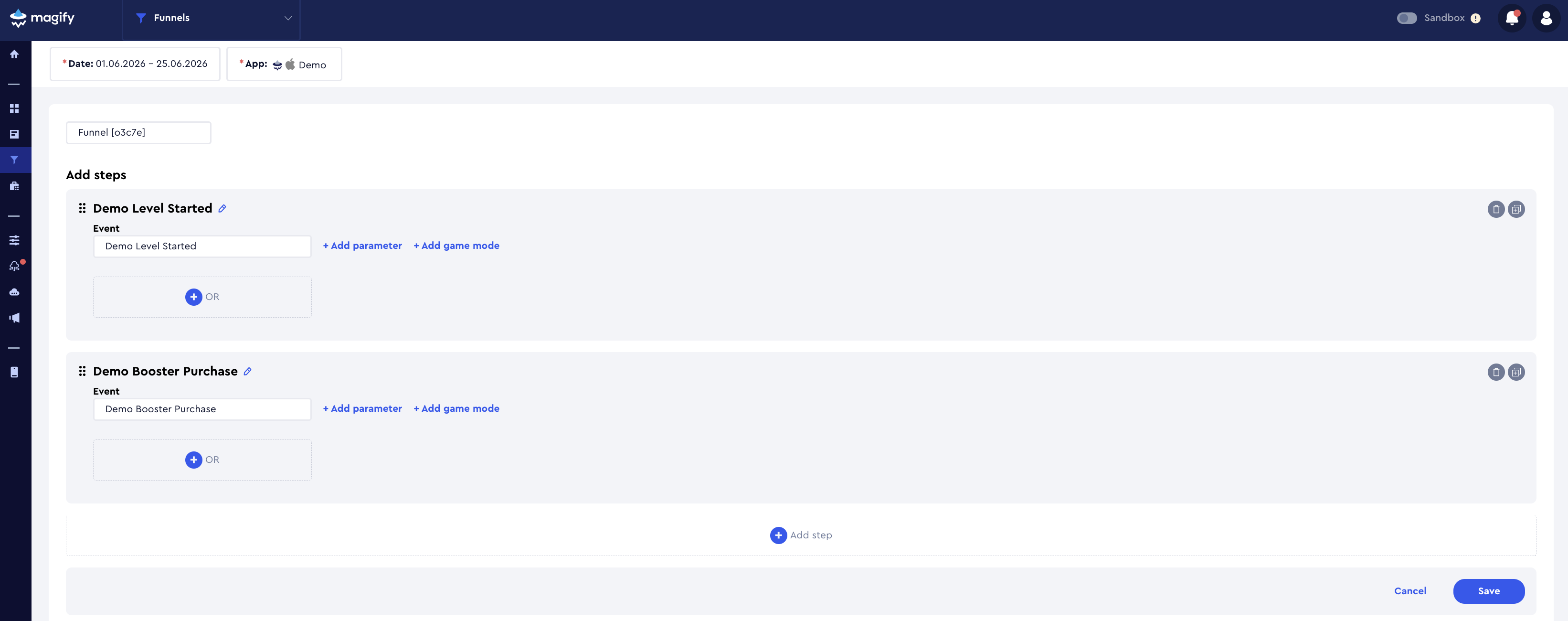
Add Parameter (Optional)
Restrict the step to events with a specific custom parameter value.
Add Game Mode (Optional)
Restrict the step to a specific game mode.
OR
Within a single step, you can add alternative event definitions.
A user is counted on the step if any of the listed event conditions is met.
Repeat the process for each subsequent step.
Steps can be:
- reordered using drag-and-drop;
- renamed;
- duplicated;
- deleted.
5. Save the Funnel
Click Save to store the funnel.
The funnel will become available in the funnel list for the selected application.
Step Configuration Details
Events
Each step must contain at least one event.
The Event dropdown shows all events received from the selected application, including both system and custom events.
Parameters
Parameters allow precise targeting within a step.
The Parameter dropdown lists the custom parameter keys available for the selected event (for example: Action, Booster, Type).
Once a key is selected, you can specify the value or values to match.
Multiple parameters within the same event are combined using AND logic — all conditions must be met for the event to qualify.
Game Mode
The Game Mode dropdown restricts the step to a specific game mode.
This is useful when the same event (for example, level_complete) is triggered in several gameplay contexts and needs to be analyzed separately.
OR Conditions Within a Step
Use the OR block to combine alternative event definitions inside a single step.
A user passes the step if at least one of the OR blocks is satisfied.
Viewing Funnel Results
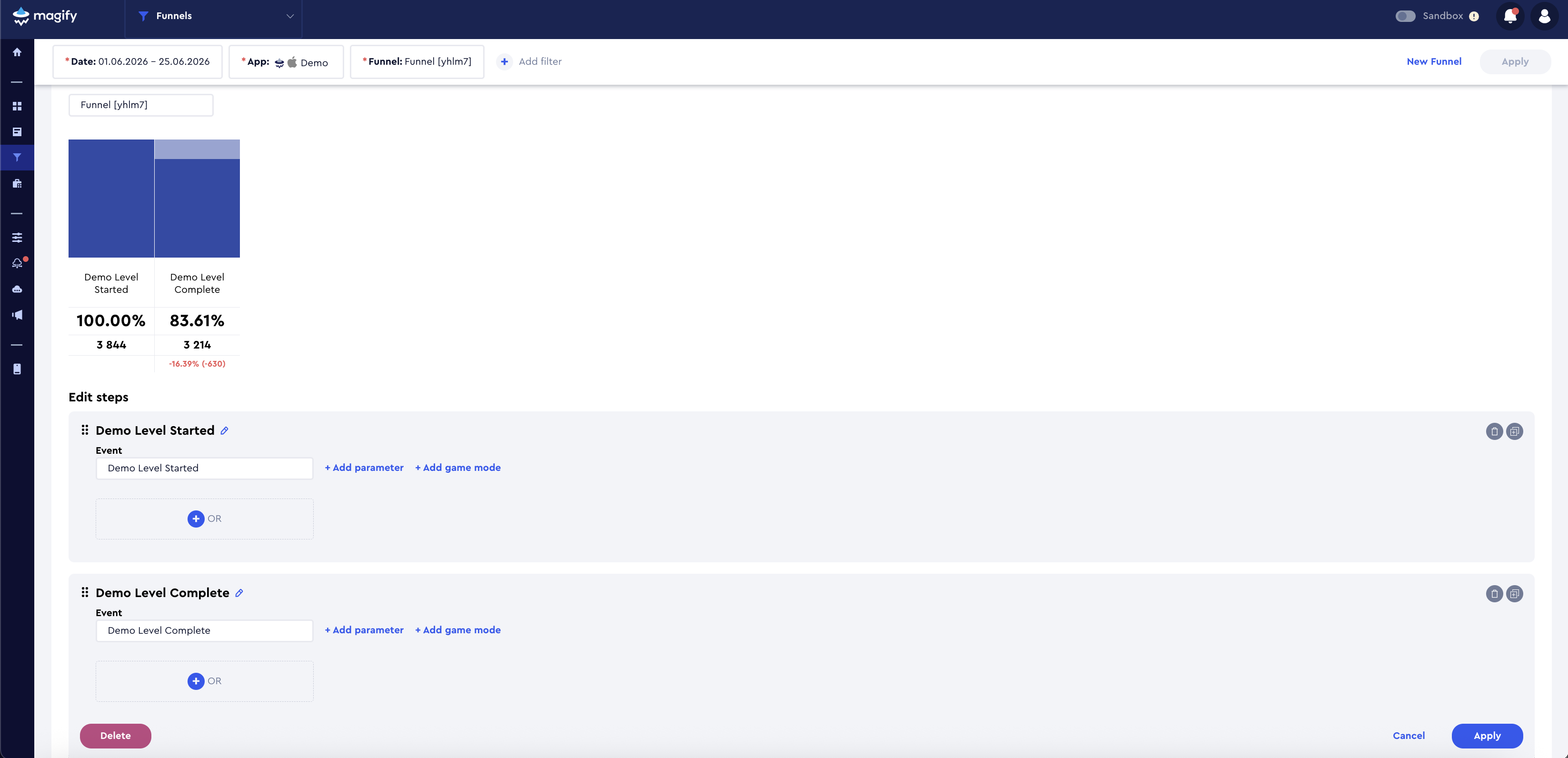
After saving, the funnel is rendered as a horizontal bar chart.
Each bar represents a step and displays:
- Conversion — share of users who reached this step relative to the first step (Absolute mode) or the previous step (Step-by-step mode).
- Users — absolute number of unique users on the step.
- Drop-off — number and percentage of users lost compared to the previous step.
Absolute vs Step-by-Step
Absolute
Displays the total count of users or events at each stage.
Every step is shown as a percentage of users on the first step.
Useful for understanding overall end-to-end conversion.
Step-by-Step
Displays conversion rates between each stage.
Every step is shown as a percentage of users on the previous step.
Useful for identifying the exact stage where the largest drop-off occurs.
Available Actions
Edit
Open the funnel configuration to modify steps, events, or parameters.
Clone
Create a copy of the funnel as a starting point for a new one.
Add Filter
Apply additional segmentation to the existing funnel without changing the funnel definition itself.
Supported dimensions include:
- Country
- App Version
- OS Version
- Device Type
- Media Source
Filters and Segmentation
The Add Filter control allows you to analyze the same funnel for different audiences.
Filters apply to all steps simultaneously and recalculate conversions for the selected audience.
Supported filter dimensions:
- Media Source
- OS Version
- Device Type
- App Version
- Country
Filters do not modify the saved funnel.
To create a permanent variation, clone the funnel and adjust the configuration as needed.
Example: Tutorial Completion Funnel
Goal
Measure how many new users complete the onboarding tutorial.
Configuration
Result Interpretation (Absolute Mode)
- Step 1: 100% (10,000 users)
- Step 2: 81% (8,100 users) — 19% drop-off after the first screen
- Step 3: 63% (6,300 users)
- Step 4: 31.9% (3,190 users) — major drop-off between the first and second tutorial blocks
Switching to Step-by-Step mode highlights that the largest single-step drop-off occurs between Step 3 and Step 4.
Best Practices
- Keep funnels focused. Three to six steps usually provide the clearest insights.
- Use consistent event naming conventions.
- Clone funnels before making major changes to preserve a baseline version for comparison.
Limitations
- Each funnel is scoped to a single application.
- A user must complete all previous steps within the selected date range to be counted on a later step.
- Cross-period journeys are not aggregated.
- Funnel results depend on events delivered through the Magify SDK.
- Missing or delayed events may affect accuracy.
- Funnel configurations cannot be retroactively applied to events that were not tracked when they occurred.