'%3e%3cpath%20d='M150.127%20195.325C233.04%20195.325%20300.255%20168.696%20300.255%20135.848C300.255%20103%20233.04%2076.3709%20150.127%2076.3709C67.2143%2076.3709%200%20103%200%20135.848C0%20168.696%2067.2143%20195.325%20150.127%20195.325Z'%20fill='white'/%3e%3cpath%20d='M231.093%20118.256L150.117%20-0.000183105L69.1527%20118.256C68.1365%20119.748%2067.5967%20121.294%2067.5967%20122.871C67.5967%20136.017%20104.538%20146.666%20150.117%20146.666C195.697%20146.666%20232.638%20136.007%20232.638%20122.871C232.638%20121.294%20232.098%20119.748%20231.082%20118.256H231.093Z'%20fill='%2301A9F2'/%3e%3cpath%20d='M150.106%20356.844L98.7265%20281.5L62.3035%20311.117L25.4253%20257.017L50.787%20239.721L68.8556%20266.226L105.279%20236.62L150.106%20302.363L194.934%20236.62L231.357%20266.226L270.045%20209.48L295.407%20226.776L237.898%20311.117L201.475%20281.5L150.106%20356.844Z'%20fill='white'/%3e%3cpath%20d='M592.168%20165.22V237.908H561.482V171.825C561.482%20153.884%20551.807%20143.034%20535.051%20143.034C516.644%20143.034%20505.318%20156.011%20505.318%20175.604V237.908H474.875V171.349C474.875%20153.407%20464.968%20142.791%20448.445%20142.791C429.804%20142.791%20418.711%20156.011%20418.711%20176.07V237.908H388.025V118.964H418.711V134.301C426.502%20122.033%20440.421%20115.418%20458.13%20115.418C477.014%20115.418%20490.7%20122.975%20498.247%20135.953C506.747%20123.208%20521.608%20115.418%20540.725%20115.418C572.819%20115.418%20592.179%20135.476%20592.179%20165.22H592.168Z'%20fill='white'/%3e%3cpath%20d='M899.48%2080.2534C899.48%2068.2182%20909.388%2059.4856%20920.248%2059.4856C931.574%2059.4856%20941.248%2068.9274%20941.248%2080.2534C941.248%2091.3465%20931.574%20100.788%20920.248%20100.788C909.155%20100.788%20899.48%2092.0557%20899.48%2080.2534Z'%20fill='white'/%3e%3cpath%20d='M935.832%20118.955H905.146V237.899H935.832V118.955Z'%20fill='white'/%3e%3cpath%20d='M1140.2%20118.955H1173L1099.84%20288.644H1067.5L1090.6%20237.666L1043.42%20118.955H1076.45L1107.37%20204.81L1140.18%20118.955H1140.2Z'%20fill='white'/%3e%3cpath%20d='M883.182%20115.418H815.904C781.45%20115.418%20755.008%20137.837%20755.008%20171.825C755.008%20206.756%20778.846%20228.466%20815.904%20228.466C831.951%20228.699%20847.288%20231.059%20847.288%20246.64C847.288%20259.617%20835.962%20267.175%20817.555%20267.175C799.148%20267.175%20784.985%20254.664%20781.915%20239.326L756.66%20246.873C763.741%20274.722%20787.346%20292.188%20817.312%20292.188C856.963%20292.188%20876.313%20272.838%20876.313%20249.233C876.313%20234.605%20869.231%20223.036%20855.545%20215.721C868.522%20206.047%20877.022%20190.709%20877.022%20171.825C877.022%20160.986%20871.412%20149.3%20863.145%20140.674H883.182V115.418ZM815.904%20203.919C797.264%20203.919%20782.392%20192.117%20782.392%20171.825C782.392%20151.534%20799.148%20139.964%20815.904%20139.964C832.66%20139.964%20849.416%20151.29%20849.416%20171.825C849.416%20188.814%20835.497%20203.919%20815.904%20203.919Z'%20fill='white'/%3e%3cpath%20d='M737.426%20237.906V118.962H708.158V136.088C698.685%20121.481%20682.796%20115.426%20668.983%20115.426C633.587%20115.426%20608.087%20143.509%20608.087%20179.148C608.087%20214.788%20633.1%20241.452%20668.03%20241.452C682.426%20241.452%20698.24%20235.08%20708.148%20220.917V237.906H737.415H737.426ZM673.471%20213.835C653.645%20213.835%20638.308%20199.207%20638.308%20178.429C638.308%20157.65%20653.889%20143.032%20673.704%20143.032C694.705%20143.032%20709.1%20160.021%20709.1%20178.429C709.1%20196.836%20694.472%20213.835%20673.46%20213.835H673.471Z'%20fill='white'/%3e%3cpath%20d='M1003.29%20111.085C1003.29%2098.5315%201011.17%2091.8842%201023.98%2091.8842C1028.9%2091.8842%201033.83%2092.6251%201037.77%2093.853L1042.2%2068.0043C1038.02%2066.7765%201027.43%2064.7971%201021.27%2064.7971C994.18%2064.7971%20972.607%2081.786%20972.607%20110.355V118.961H956.889V144.216H972.607V164.519V237.915H1003.29V144.216H1038.46V118.961H1003.29V111.096V111.085Z'%20fill='white'/%3e%3c/g%3e%3cdefs%3e%3cclipPath%20id='clip0_1_3'%3e%3crect%20width='1173'%20height='356.842'%20fill='white'/%3e%3c/clipPath%3e%3c/defs%3e%3c/svg%3e)

Refund Saver
Overview
Refund Saver automates the processing of Apple refund requests.
When Apple requires additional information to evaluate a refund request, Refund Saver automatically prepares and submits a response using purchase and consumption data collected through the Magify SDK and Transaction Validator. The response is generated based on the Refund Saver preferences configured for your application.
This automates the submission of the information Apple requires to evaluate refund requests and helps ensure timely responses.
Refund Saver also provides a centralized dashboard where you can monitor refund activity and review refund performance across your applications.
How It Works
Refund Saver processes Apple refund requests by combining purchase and consumption data collected through the Magify SDK, validated transaction information provided by Transaction Validator, and the Refund Saver preferences configured for your application.
The refund processing workflow consists of the following steps.
1. Customer Requests a Refund
A customer submits a refund request for an in-app purchase or subscription through the App Store.
2. Apple Requests Consumption Information
If additional information is required before making a decision, Apple sends a CONSUMPTION_REQUEST notification through App Store Server Notifications V2.
3. Refund Saver Prepares a Response
After receiving the notification, Refund Saver automatically:
- retrieves purchase and consumption data collected through the Magify SDK;
- retrieves validated transaction information from Transaction Validator;
- applies the configured Refund Preference;
- applies the configured Default Consent Policy;
- generates a response that complies with Apple's requirements;
- submits the response to Apple.
4. Apple Reviews the Request
Apple reviews the response submitted by Refund Saver before making the final refund decision.
The final refund decision is always made by Apple.
5. Review the Results
After Apple completes the review, refund requests and their outcomes become available in the Refund Saver Dashboard, where you can review refund activity and processing results.
What You'll Need
Before using Refund Saver, make sure the following components have already been configured.
Magify SDK
The Magify SDK collects the purchase and consumption data required for refund processing.
Transaction Validator
Transaction Validator validates App Store transactions and provides the transaction information used by Refund Saver.
App Store Server Notifications V2
Refund Saver requires App Store Server Notifications V2 to receive CONSUMPTION_REQUEST notifications from Apple.
For setup and verification instructions, see Verify App Store Server Notifications.
Connected iOS Application
Your iOS application must be connected to your Magify organization.
Refund Saver is ready to process refund requests after all required components have been configured successfully.
Verify App Store Server Notifications
Before enabling Refund Saver, verify that your App Store Server Notifications endpoint can successfully receive notifications from Apple.
Apple recommends using the Request a Test Notification endpoint to send a test notification to your configured App Store Server Notifications endpoint. After sending the request, use the Get Test Notification Status endpoint to confirm that the notification was delivered successfully.
For implementation details, refer to Apple's official documentation:
Refund Saver
After completing the required setup and verifying your App Store Server Notifications integration, you can configure Refund Saver in the Magify dashboard.
Navigate to Configuration → Refund Saver.
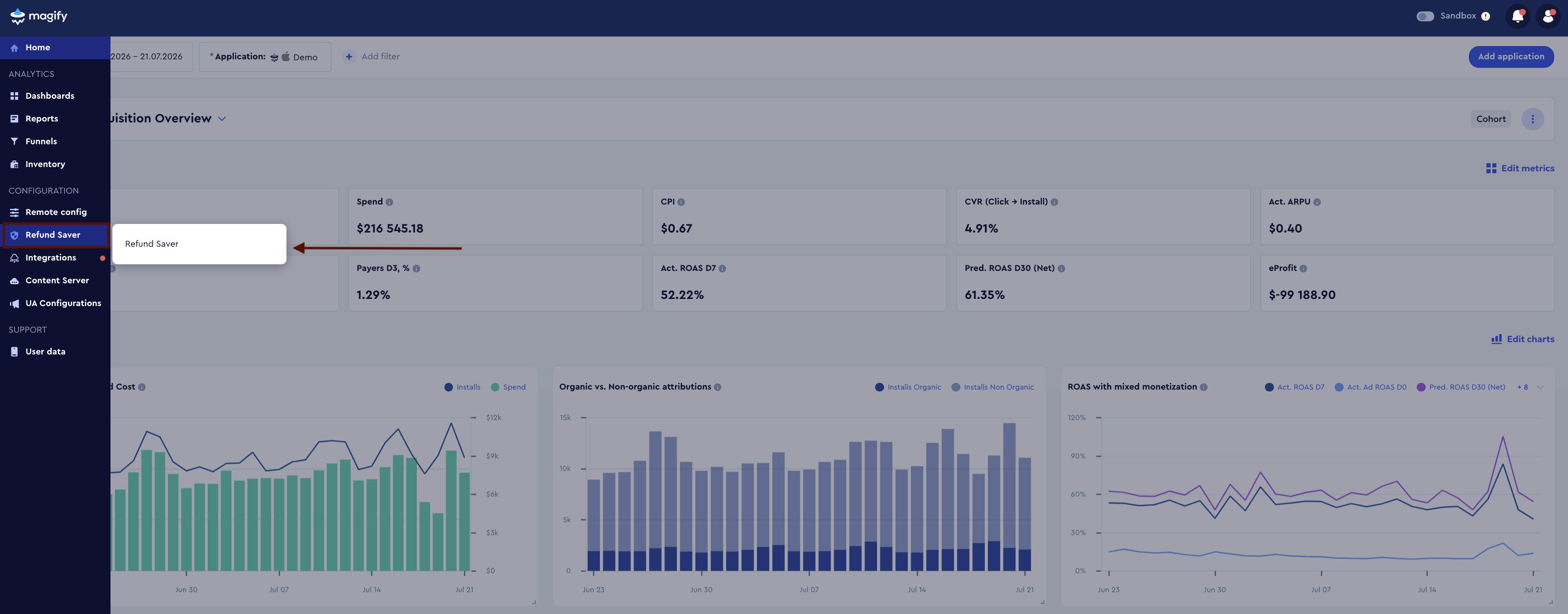
The Refund Saver page provides an overview of refund activity across your applications and allows you to access the dashboard for each application.
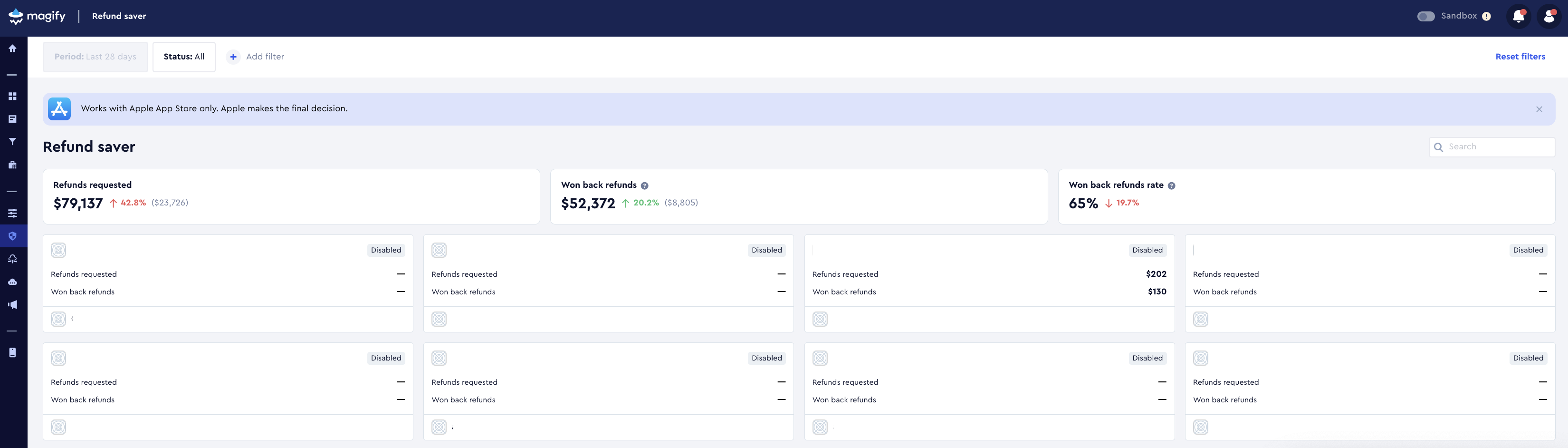
The page consists of two main sections:
- Summary Metrics
- Applications
Summary Metrics
The summary cards display overall refund statistics across all applications available in your organization.
These metrics provide a quick overview of refund activity without opening an individual application's dashboard.
Applications
Each configured application is displayed as a separate card.
Select an application to open its Refund Saver Dashboard and configure Refund Saver settings.
Initial Setup
If Refund Saver has not yet been configured for an application, the Initial Setup page is displayed instead of the Refund Saver Dashboard.
The page displays the current integration status and the remaining configuration steps required before Refund Saver can be enabled.
Complete all required setup steps before enabling Refund Saver.
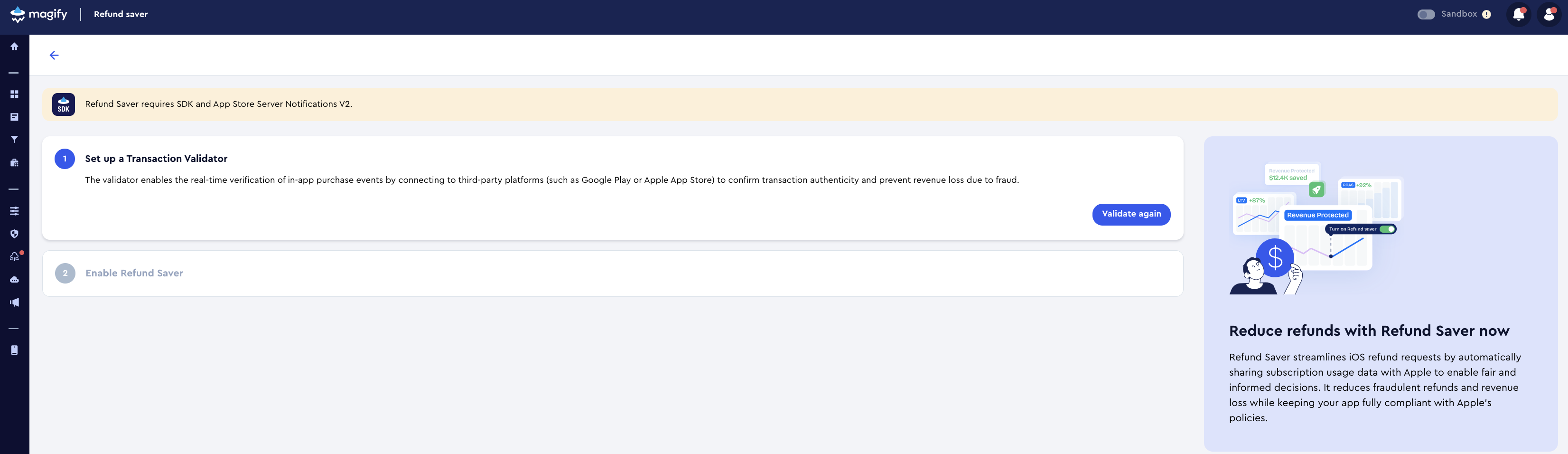
The page consists of the following sections:
- Requirements
- Setup Steps
Requirements
The notification banner at the top of the page highlights the integrations required to use Refund Saver.
Before enabling Refund Saver, make sure the following components are configured:
- Magify SDK
- Transaction Validator
- App Store Server Notifications V2
Setup Steps
The setup wizard guides you through the required configuration steps.
Completed steps are marked automatically.
The information panel on the right provides a brief overview of Refund Saver and its purpose.
Refund Saver Dashboard
The Refund Saver Dashboard provides detailed refund activity for the selected application.
To open the dashboard, select an application on the Refund Saver page.
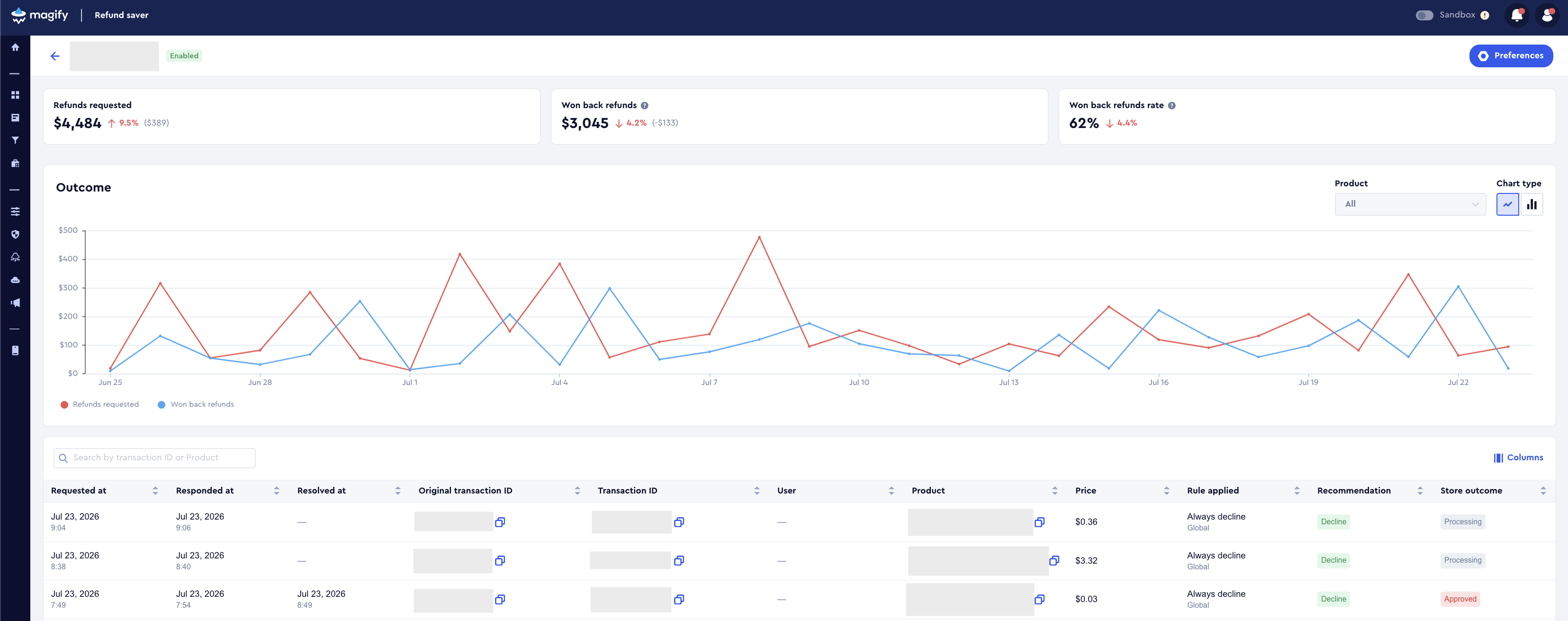
The dashboard consists of the following sections:
- Summary Metrics
- Outcome Chart
- Filters
- Refund Request History
Summary Metrics
The summary cards display the main refund performance indicators for the selected application.
These metrics provide a quick overview of refund performance for the selected reporting period.
Outcome Chart
The Outcome chart visualizes refund activity for the selected reporting period.
By default, the chart displays the following metrics:
- Refunds requested
- Won back refunds
The chart updates when you change the reporting period or apply a product filter.
Chart Type
Use the chart controls in the upper-right corner to switch between the available visualization types.
Refund activity can be displayed as:
- Line
- Bar
Filters
Use the available filters to control which refund data is displayed on the dashboard.
Date Range
Use the date range selector to display refund activity for the required reporting period.
Changing the selected period updates the summary metrics, chart, and refund request history.
Product
Use the Product filter to display refund information for a specific product.
Applying the filter updates the summary metrics, chart, and refund request history.
Refund Request History
The refund request history displays detailed information about individual refund requests.
The table includes the following columns:
Use the table to review individual refund requests together with the recommendation submitted to Apple and the final refund outcome.
Store Outcome
The Store outcome column displays Apple's final processing result for each refund request.
Because Apple independently reviews every request, the final outcome may differ from the recommendation submitted by Refund Saver.
Refund Saver Preferences
Refund Saver behavior is configured through the Preferences dialog.
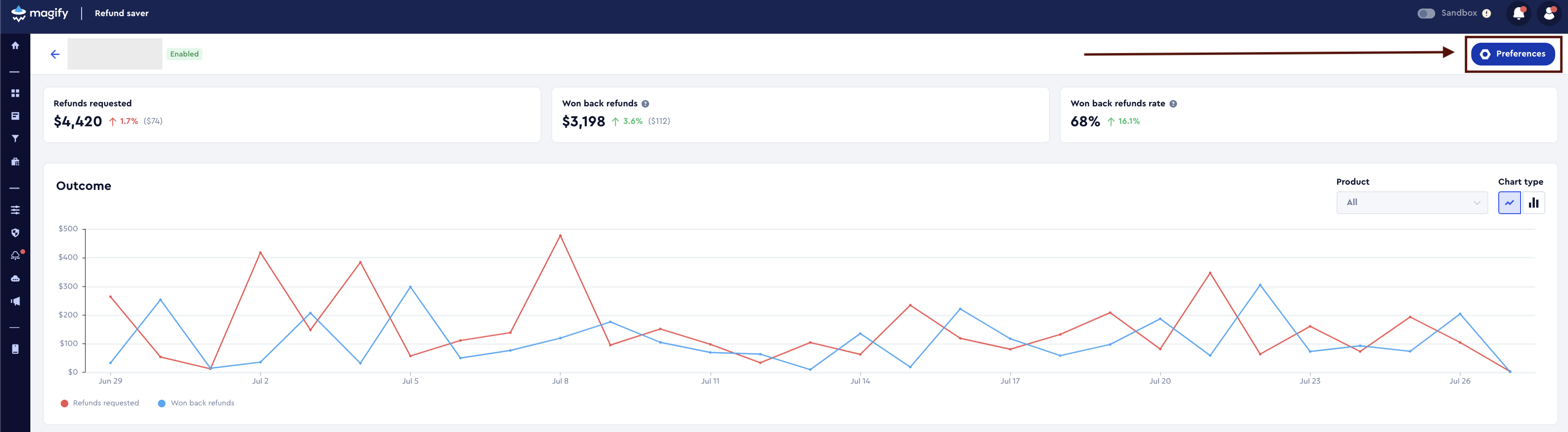
To open the dialog, click Preferences in the upper-right corner of the Refund Saver Dashboard.
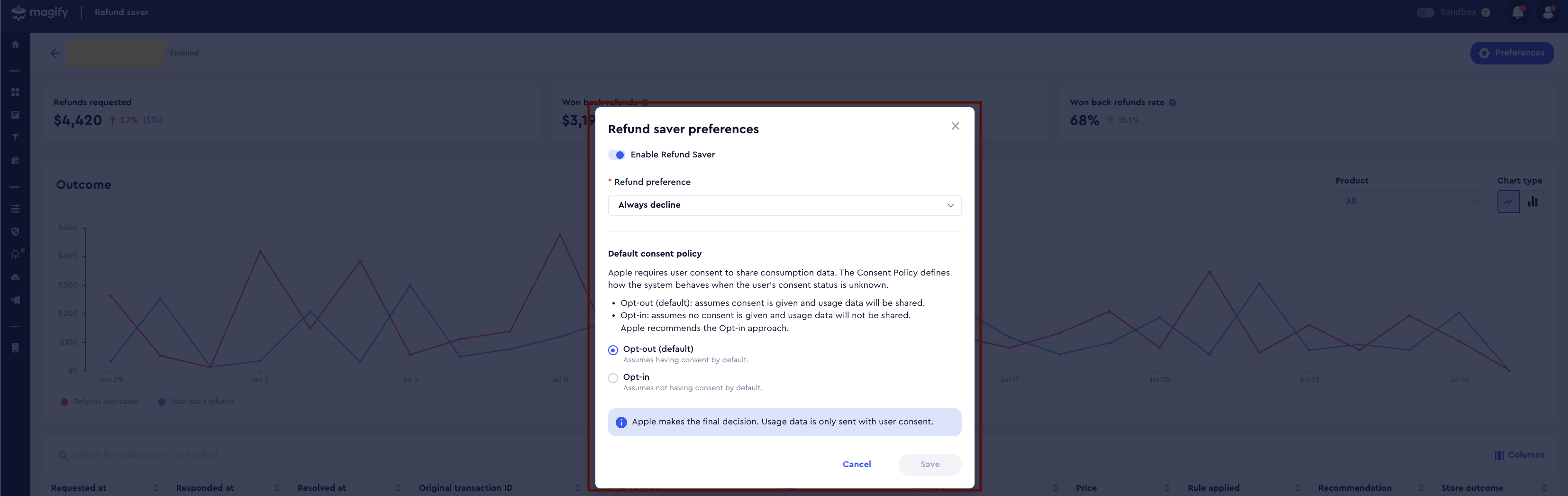
The dialog contains the following settings:
- Enable Refund Saver
- Refund Preference
- Default Consent Policy
Enable Refund Saver
Use the Enable Refund Saver switch to activate or deactivate Refund Saver for the selected application.

When enabled, Refund Saver automatically processes CONSUMPTION_REQUEST notifications received from Apple and submits responses using the configured settings.
When disabled, Refund Saver does not process incoming refund requests or submit responses to Apple.
Changes take effect after saving the configuration.
Refund Preference
Refund Preference determines which recommendation Refund Saver includes in the response submitted to Apple.
The following options are available:
Select the option that best matches your application's refund policy.
Default Consent Policy
The Default Consent Policy defines which consent assumption Refund Saver uses when Apple's refund request does not contain enough information to determine whether the customer has granted permission to share consumption data.
The following options are available:
Choose the policy that matches your application's privacy requirements and consent strategy.
Important Notes
- Refund Saver requires App Store Server Notifications V2 to receive
CONSUMPTION_REQUESTnotifications from Apple. - Refund Saver relies on purchase and consumption data collected through the Magify SDK together with validated transaction information provided by Transaction Validator.
- Refund Saver does not collect consumption data itself.
- Refund Saver does not validate App Store transactions itself.
- Refund Preference affects only the recommendation submitted to Apple.
- Apple always makes the final refund decision.