'%3e%3cpath%20d='M150.127%20195.325C233.04%20195.325%20300.255%20168.696%20300.255%20135.848C300.255%20103%20233.04%2076.3709%20150.127%2076.3709C67.2143%2076.3709%200%20103%200%20135.848C0%20168.696%2067.2143%20195.325%20150.127%20195.325Z'%20fill='white'/%3e%3cpath%20d='M231.093%20118.256L150.117%20-0.000183105L69.1527%20118.256C68.1365%20119.748%2067.5967%20121.294%2067.5967%20122.871C67.5967%20136.017%20104.538%20146.666%20150.117%20146.666C195.697%20146.666%20232.638%20136.007%20232.638%20122.871C232.638%20121.294%20232.098%20119.748%20231.082%20118.256H231.093Z'%20fill='%2301A9F2'/%3e%3cpath%20d='M150.106%20356.844L98.7265%20281.5L62.3035%20311.117L25.4253%20257.017L50.787%20239.721L68.8556%20266.226L105.279%20236.62L150.106%20302.363L194.934%20236.62L231.357%20266.226L270.045%20209.48L295.407%20226.776L237.898%20311.117L201.475%20281.5L150.106%20356.844Z'%20fill='white'/%3e%3cpath%20d='M592.168%20165.22V237.908H561.482V171.825C561.482%20153.884%20551.807%20143.034%20535.051%20143.034C516.644%20143.034%20505.318%20156.011%20505.318%20175.604V237.908H474.875V171.349C474.875%20153.407%20464.968%20142.791%20448.445%20142.791C429.804%20142.791%20418.711%20156.011%20418.711%20176.07V237.908H388.025V118.964H418.711V134.301C426.502%20122.033%20440.421%20115.418%20458.13%20115.418C477.014%20115.418%20490.7%20122.975%20498.247%20135.953C506.747%20123.208%20521.608%20115.418%20540.725%20115.418C572.819%20115.418%20592.179%20135.476%20592.179%20165.22H592.168Z'%20fill='white'/%3e%3cpath%20d='M899.48%2080.2534C899.48%2068.2182%20909.388%2059.4856%20920.248%2059.4856C931.574%2059.4856%20941.248%2068.9274%20941.248%2080.2534C941.248%2091.3465%20931.574%20100.788%20920.248%20100.788C909.155%20100.788%20899.48%2092.0557%20899.48%2080.2534Z'%20fill='white'/%3e%3cpath%20d='M935.832%20118.955H905.146V237.899H935.832V118.955Z'%20fill='white'/%3e%3cpath%20d='M1140.2%20118.955H1173L1099.84%20288.644H1067.5L1090.6%20237.666L1043.42%20118.955H1076.45L1107.37%20204.81L1140.18%20118.955H1140.2Z'%20fill='white'/%3e%3cpath%20d='M883.182%20115.418H815.904C781.45%20115.418%20755.008%20137.837%20755.008%20171.825C755.008%20206.756%20778.846%20228.466%20815.904%20228.466C831.951%20228.699%20847.288%20231.059%20847.288%20246.64C847.288%20259.617%20835.962%20267.175%20817.555%20267.175C799.148%20267.175%20784.985%20254.664%20781.915%20239.326L756.66%20246.873C763.741%20274.722%20787.346%20292.188%20817.312%20292.188C856.963%20292.188%20876.313%20272.838%20876.313%20249.233C876.313%20234.605%20869.231%20223.036%20855.545%20215.721C868.522%20206.047%20877.022%20190.709%20877.022%20171.825C877.022%20160.986%20871.412%20149.3%20863.145%20140.674H883.182V115.418ZM815.904%20203.919C797.264%20203.919%20782.392%20192.117%20782.392%20171.825C782.392%20151.534%20799.148%20139.964%20815.904%20139.964C832.66%20139.964%20849.416%20151.29%20849.416%20171.825C849.416%20188.814%20835.497%20203.919%20815.904%20203.919Z'%20fill='white'/%3e%3cpath%20d='M737.426%20237.906V118.962H708.158V136.088C698.685%20121.481%20682.796%20115.426%20668.983%20115.426C633.587%20115.426%20608.087%20143.509%20608.087%20179.148C608.087%20214.788%20633.1%20241.452%20668.03%20241.452C682.426%20241.452%20698.24%20235.08%20708.148%20220.917V237.906H737.415H737.426ZM673.471%20213.835C653.645%20213.835%20638.308%20199.207%20638.308%20178.429C638.308%20157.65%20653.889%20143.032%20673.704%20143.032C694.705%20143.032%20709.1%20160.021%20709.1%20178.429C709.1%20196.836%20694.472%20213.835%20673.46%20213.835H673.471Z'%20fill='white'/%3e%3cpath%20d='M1003.29%20111.085C1003.29%2098.5315%201011.17%2091.8842%201023.98%2091.8842C1028.9%2091.8842%201033.83%2092.6251%201037.77%2093.853L1042.2%2068.0043C1038.02%2066.7765%201027.43%2064.7971%201021.27%2064.7971C994.18%2064.7971%20972.607%2081.786%20972.607%20110.355V118.961H956.889V144.216H972.607V164.519V237.915H1003.29V144.216H1038.46V118.961H1003.29V111.096V111.085Z'%20fill='white'/%3e%3c/g%3e%3cdefs%3e%3cclipPath%20id='clip0_1_3'%3e%3crect%20width='1173'%20height='356.842'%20fill='white'/%3e%3c/clipPath%3e%3c/defs%3e%3c/svg%3e)

Understanding Parent And Nested Campaigns
Overview
Campaigns in Magify can be structured into two hierarchical levels: Parent Campaigns and Nested Campaigns.
This structure allows a group of campaigns to be organized under a higher-level Parent Campaign.
The following terminology is used throughout Magify:
- Parent Campaign – A top-level campaign that may contain one or more Nested Campaigns or exist independently without any Nested Campaigns.
- Nested Campaign – A child campaign that operates within a Parent Campaign. All purchases and performance tracking occur at the Nested Campaign level.
Understanding this structure is important when analyzing campaign statistics, as data can be collected and displayed at different campaign levels.
Example: Parent and Nested Campaigns in a Demo Application
The screenshot below illustrates a Parent Campaign containing three Nested Campaigns. When a mobile app user sees this campaign, impression data is sent to analytics for both the Parent Campaign, representing the entire store view, and each of the three Nested Campaigns, representing individual offers.
.jpg)
How Interactions Are Tracked
User interactions such as clicks, purchases, ad views, and bonus claims are associated with specific Product IDs, which correspond to Nested Campaigns.
For example:
- A user sees the Parent Campaign, which features three offers in a single creative.
- The user selects the first offer ("Standard Pack +100").
- The click action, as well as the purchase transaction (price, quantity, and product details), is attributed specifically to the Nested Campaign linked to this offer.
Why This Structure Matters
This structure enables campaign performance to be analyzed at different levels:
- Parent Campaign level – Measure overall impressions, clicks, and conversions for the entire campaign.
- Nested Campaign level – Identify which specific offer from the campaign generated the highest engagement and purchases.
This allows marketers to assess campaign effectiveness at multiple levels, optimize promotions, and refine in-app store strategies.
How Parent and Nested Campaigns Are Configured in Magify
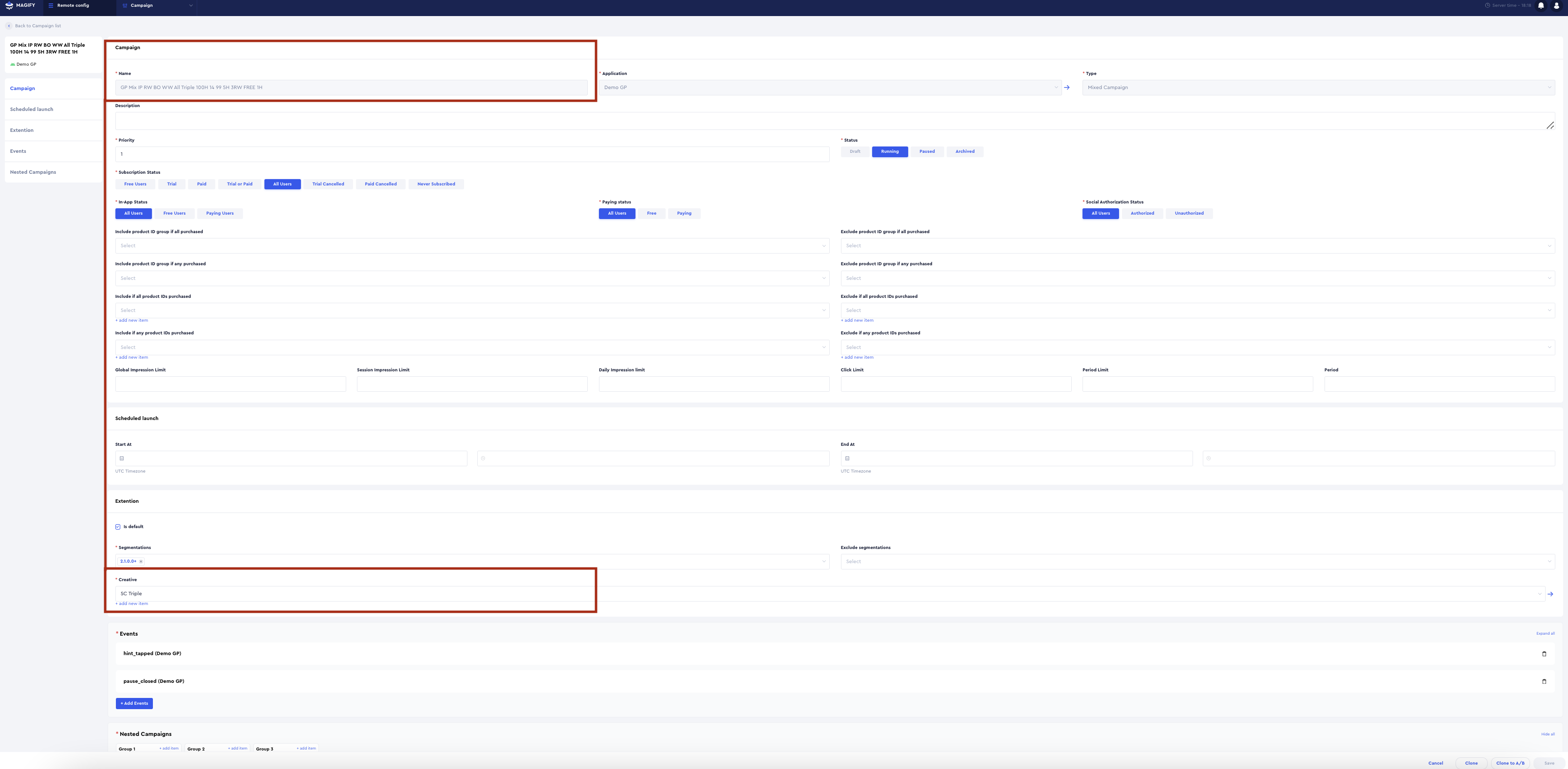
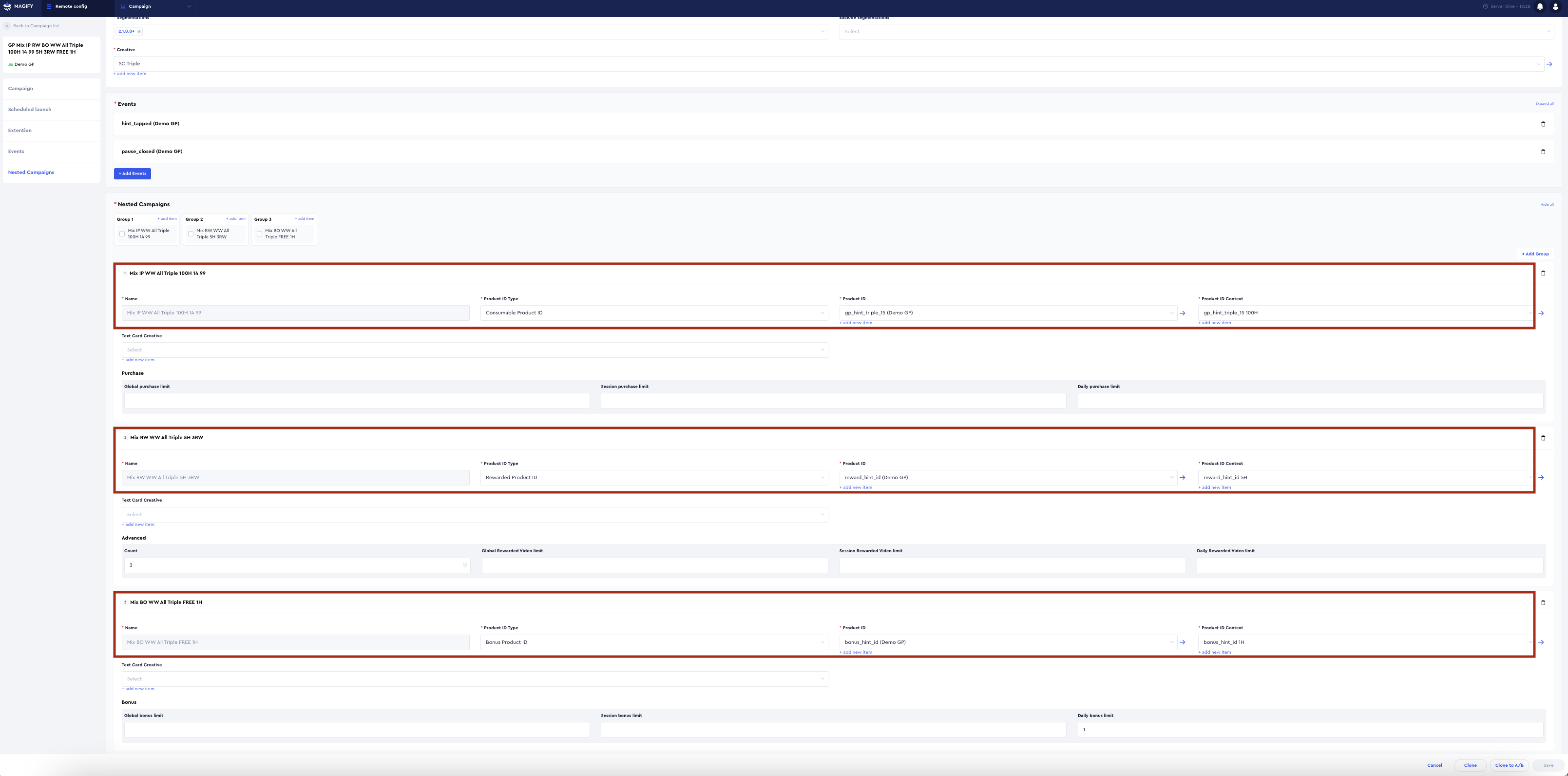
All offers from the previous screenshot are represented within a Parent Campaign.
The screenshot below shows how this Parent Campaign is structured in the admin panel. It includes all elements that define the campaign, such as creatives, promotions, and offers, presented as a store-like display.
Inside the Parent Campaign, there are three Nested Campaigns, each associated with its own Product ID.
This configuration enables precise tracking and management of each Nested Campaign while maintaining a structured hierarchy within the Parent Campaign.
When analyzing campaign statistics, it is important to remember that the Impressions metric is collected at both the Parent Campaign and Nested Campaign levels.
This means that the number of impressions for a Parent Campaign does not always equal the sum of impressions for its Nested Campaigns, especially in complex monetization setups.
Parent and Nested Campaign Statistics
The key consideration is that the total number of impressions may vary when transitioning from Parent Campaign statistics to a Nested Campaign breakdown.
How Parent and Nested Campaign Statistics Work
To illustrate the relationship between Parent Campaign and Nested Campaign statistics, consider the following example using in-app campaigns.
Imagine that a Parent Campaign (Parent A) represents an in-game store featuring two offers: Nested B and Nested C. These Nested Campaigns correspond to different in-app purchases with varying prices and bonus structures.
Basic Scenario: Single Parent Campaign with Two Nested Campaigns
If the in-game store (Parent A) receives 10 impressions, the statistics would be displayed as follows:
Parent Campaign-Level Impressions
Nested Campaign-Level Impressions
Advanced Scenario: Different Display Rules for Nested Campaigns
Now, consider a more complex setup where each Nested Campaign follows a different display schedule:
- Nested B is shown only on Mondays.
- Nested C is shown only on Tuesdays.
On Monday, the in-game store received 6 impressions, and on Tuesday, it received 4 impressions.
Monday Statistics
Tuesday Statistics
Total Impressions for Both Days
Further Complexity: Adding a Third Nested Campaign
Now, let’s enhance the setup by introducing a third offer (Nested D), which will always be displayed in the store, regardless of the day of the week.
On Monday, the statistics would be:
Monday Statistics
Tuesday Statistics
Total Impressions for Both Days
Key Takeaways
- Parent Campaigns and Nested Campaigns have separate impression counts.
The number of impressions at the Parent Campaign level does not necessarily equal the sum of Nested Campaign impressions. - Nested Campaign impressions depend on their display conditions.
Some offers may appear only on specific days, impacting overall statistics. - A Nested Campaign always tracks impressions independently, even if multiple offers exist under the same Parent Campaign.
This structure allows for granular analysis of user engagement with each offer while maintaining a holistic view of store performance at the Parent Campaign level.
Campaign-related data can determine whether Impressions statistics are displayed at the Parent Campaign level or the Nested Campaign level.
When filtering or breaking down data by:
- Product ID
- Product ID Type
- Nested Monetization Model
the Impressions metric is always displayed at the Nested Campaign level.
This is because Product ID, Product ID Type, and Nested Monetization Model are attributes exclusive to Nested Campaigns and are not applicable at the Parent Campaign level. As a result, the statistics automatically switch to the Nested Campaign level.
Filters and Dimensions: Product ID & Creative Example
How These Filters and Dimensions Work: Example with Product ID and Creative
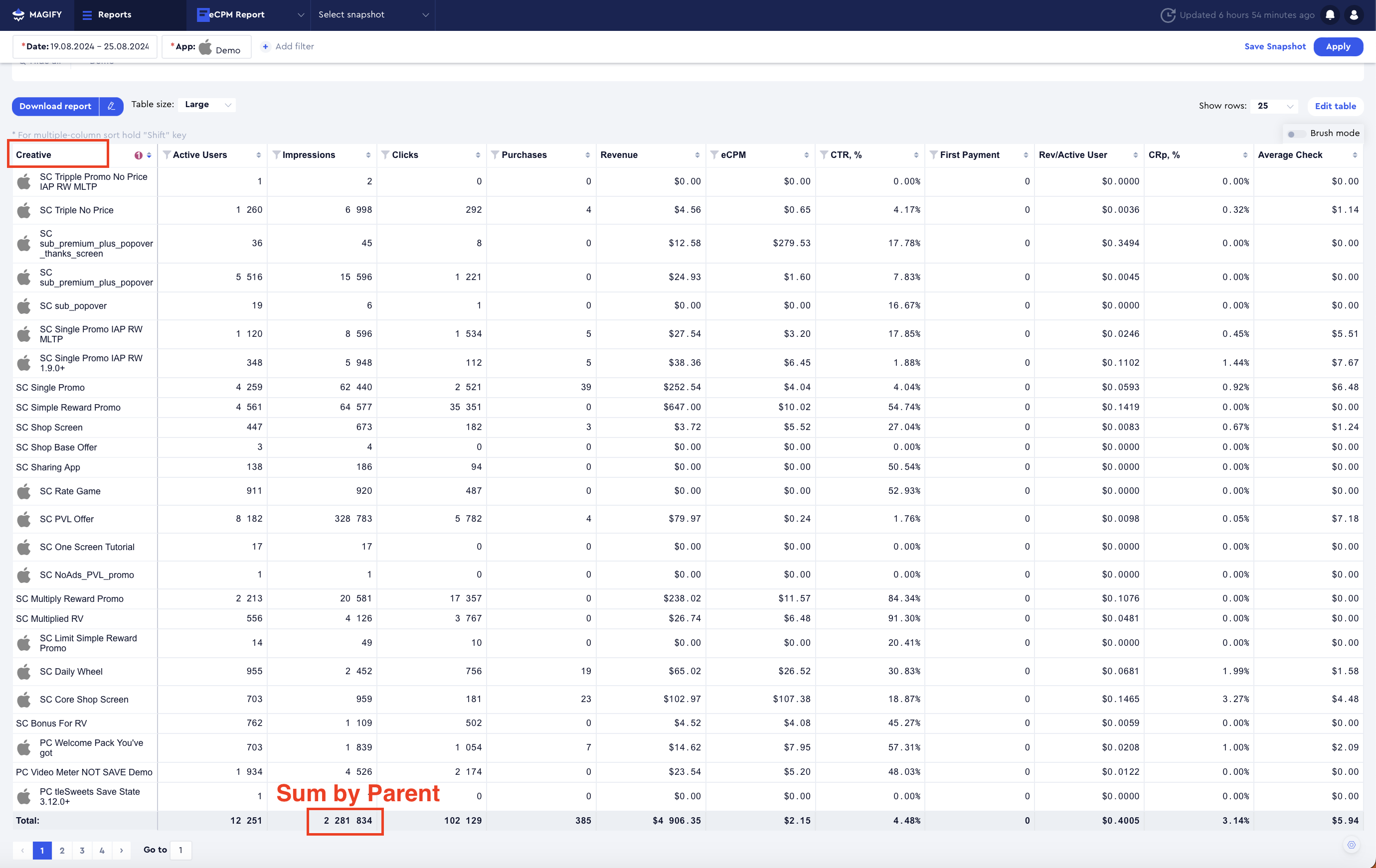
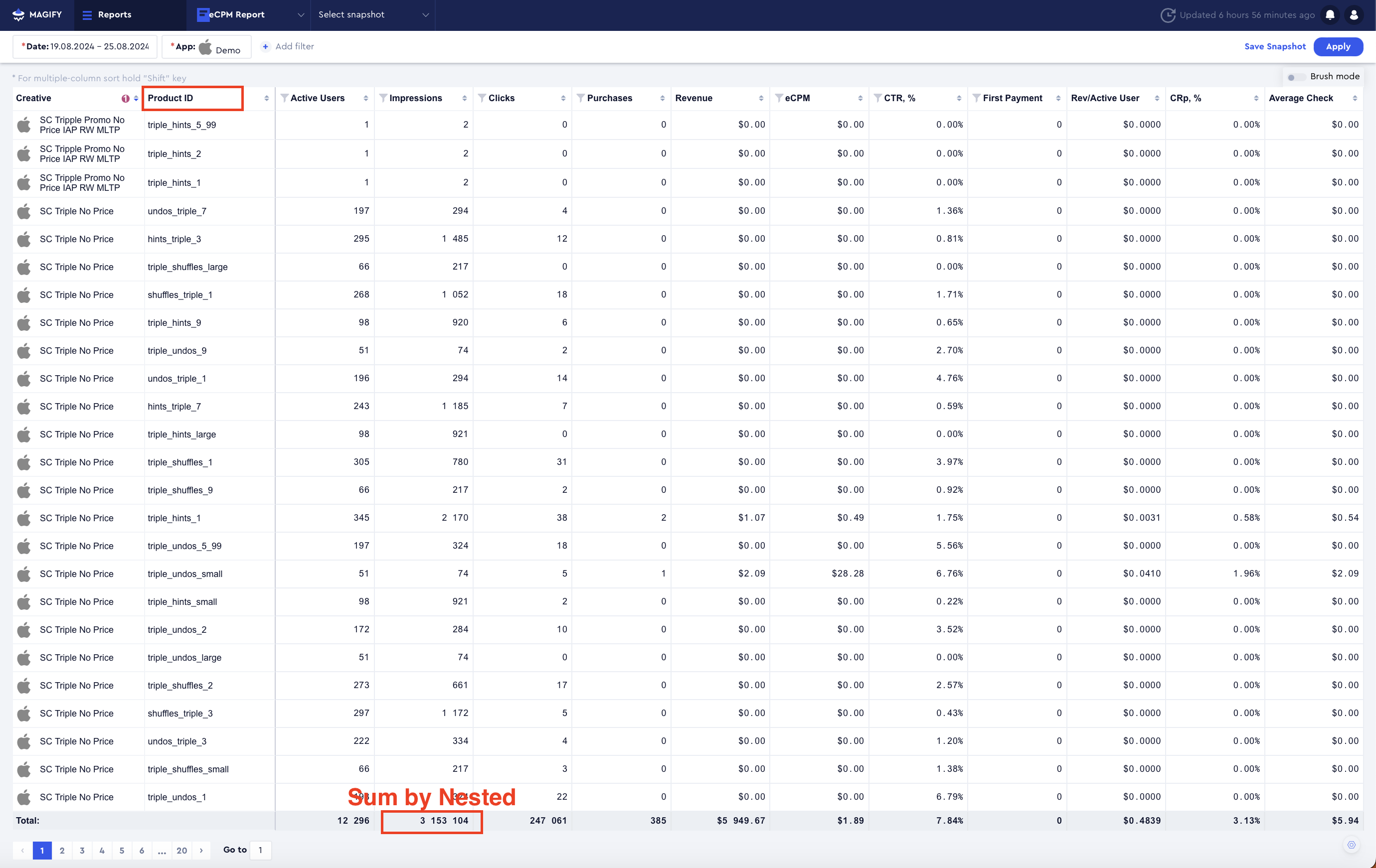
For example, when the Creative dimension is activated, the statistics display the total number of Impressions at the Parent Campaign level.
However, as soon as a second active dimension is added for Product (Product ID), the statistics switch to displaying Impressions at the Nested Campaign level.
Parent Campaign statistics are useful for comparing two creatives at a high level.
Nested Campaign statistics are useful for analyzing how the same product performs across different creatives.
Working with Products and Creatives
Examples: How to Work with Products and Creatives
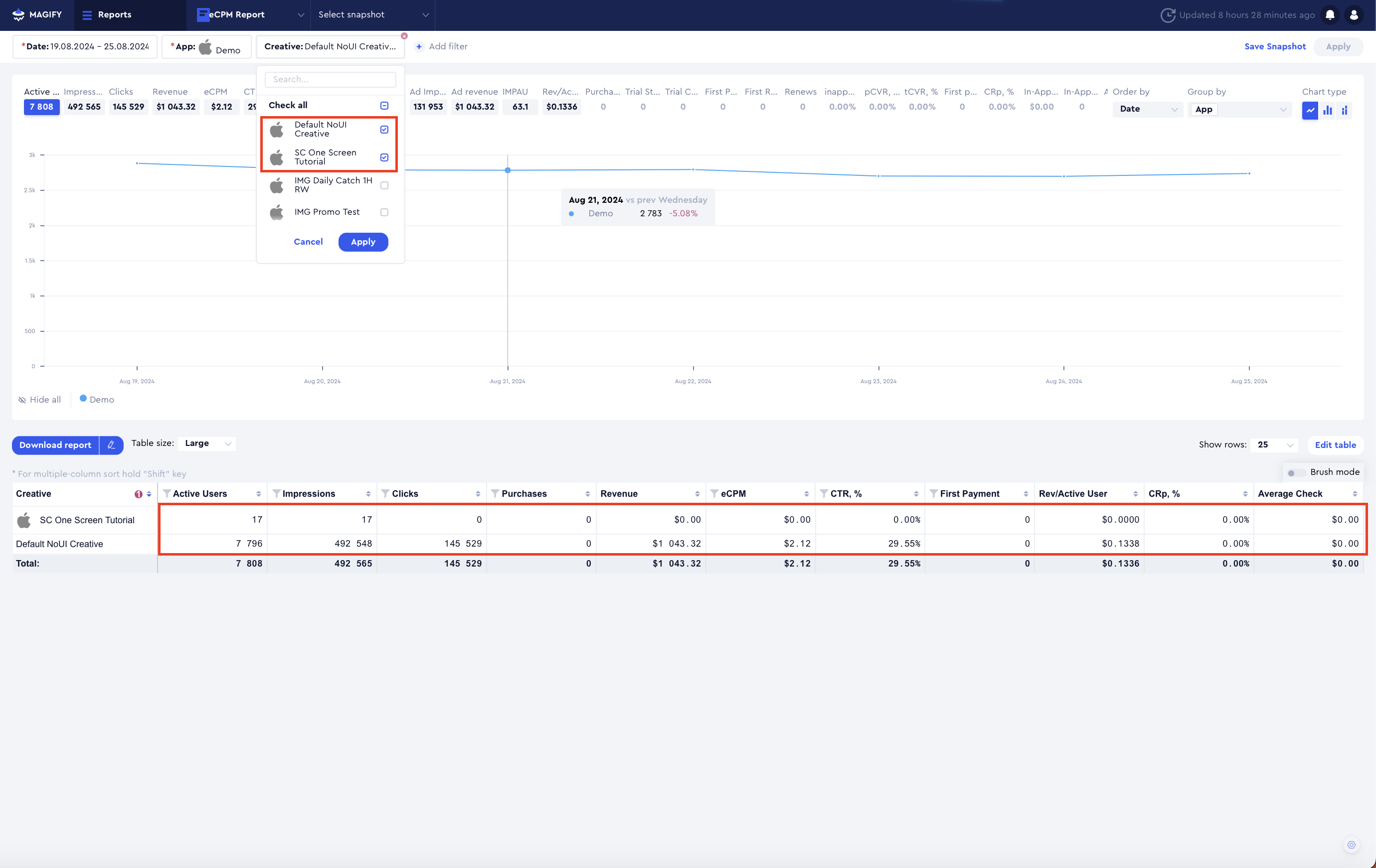
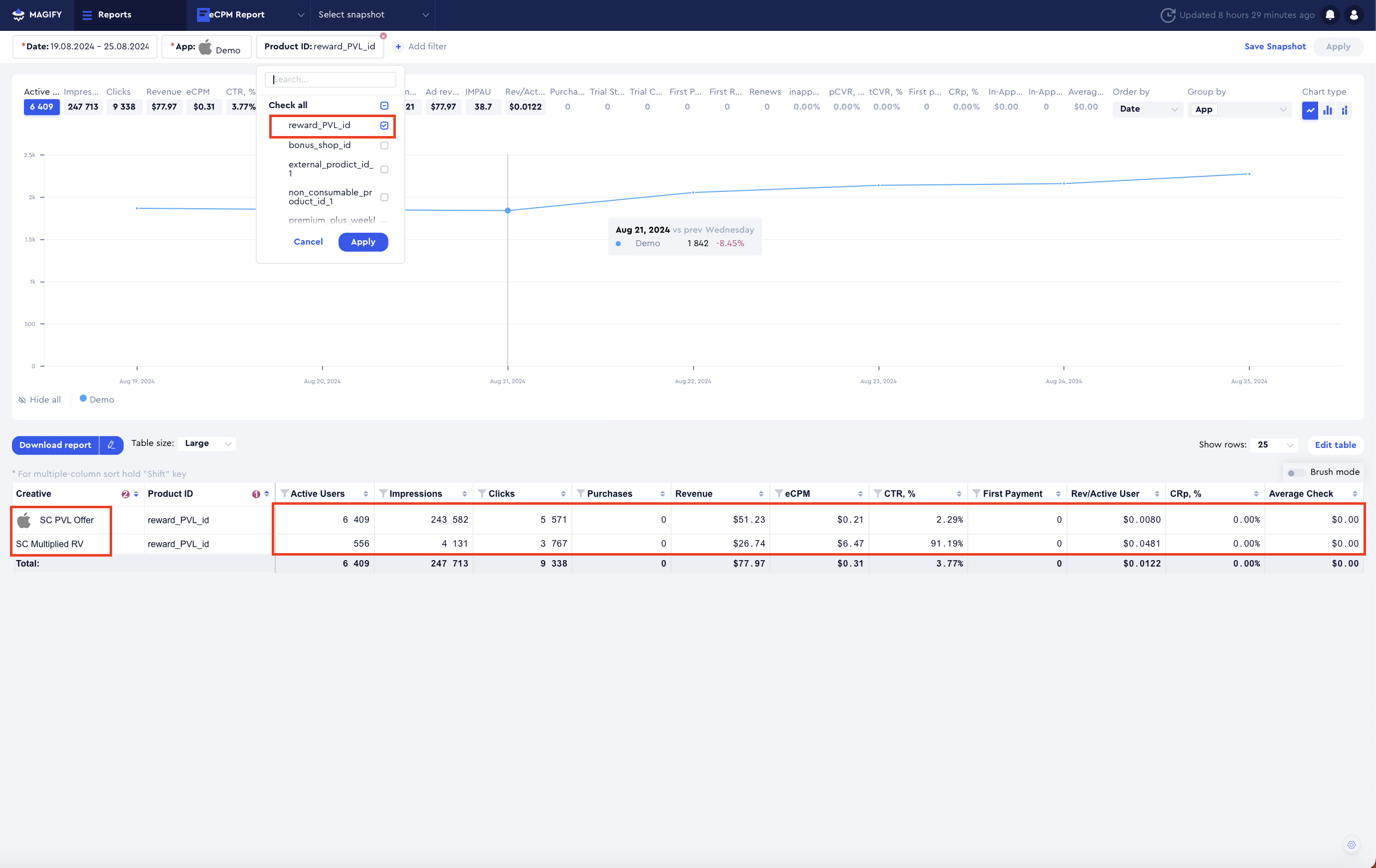
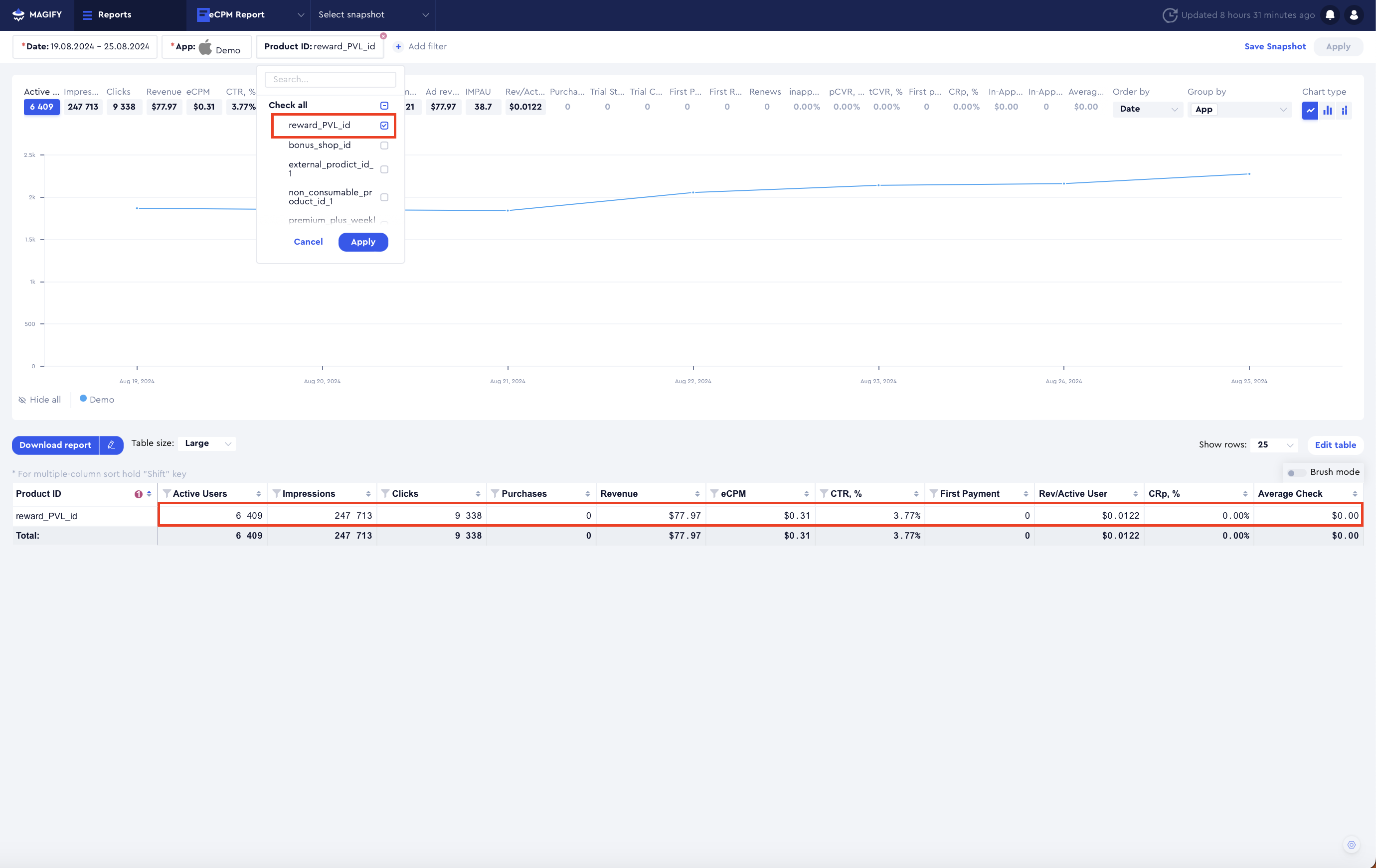
To compare the performance of multiple creatives, the recommended approach is to select the desired creatives in the Creative filter and use Creative as a breakdown dimension.
In this case, statistics are displayed at the Parent Campaign level, as creatives are linked to Parent Campaigns.
If the goal is to compare the performance of the same product across different creatives, the best approach is to select the product in the filter and apply a breakdown by both Product and Creative dimensions.
In this case, statistics are displayed at the Nested Campaign level for all campaigns associated with the selected product. Additionally, the Creative value is displayed from the Parent Campaign that includes these Nested Campaigns.
If the goal is to gather overall statistics for a product, the best approach is to select the product in both the filter and dimensions.
In this case, statistics are displayed at the Nested Campaign level for all campaigns associated with the selected product.
Filtering by Campaign Type: Important Considerations
Use caution when filtering by Campaign Type, as this filter includes all available campaign types in Magify—both at the Parent Campaign and Nested Campaign levels.
When selecting multiple campaign types at the same time, ensure that all selected types belong exclusively to either the Parent or Nested level.
Nested Campaign types can be easily identified, as they always start with the word "Nested" in their names.
Additionally, other filters are directly related to the Campaign Type filter. Do not select Parent Campaign types while simultaneously using filters designed for Nested Campaigns, such as:
- Product ID
- Product ID Type
- Nested Monetization Model
Doing so may result in missing data.
Campaign Type Filter Examples
Examples of Using the Campaign Type Filter
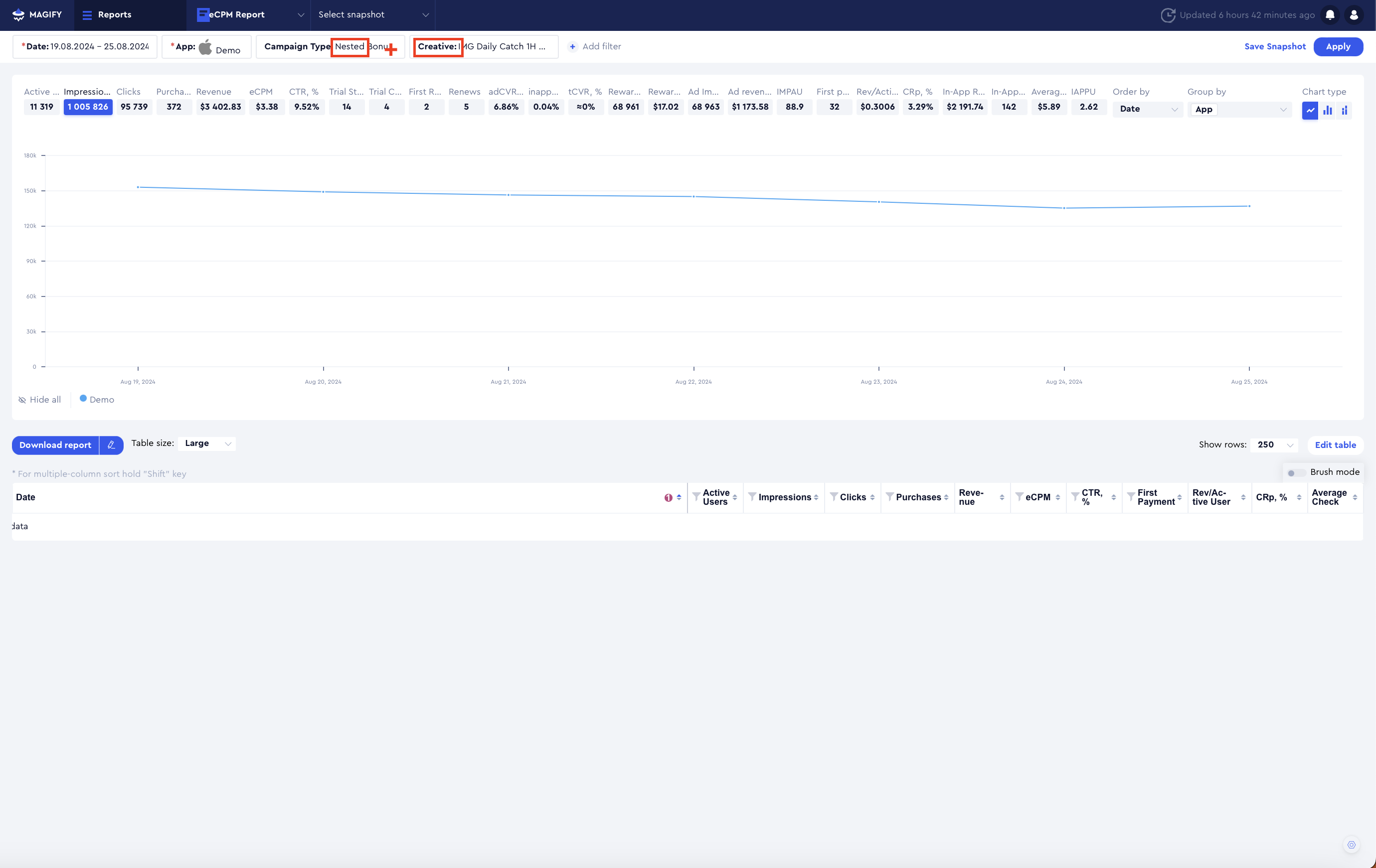
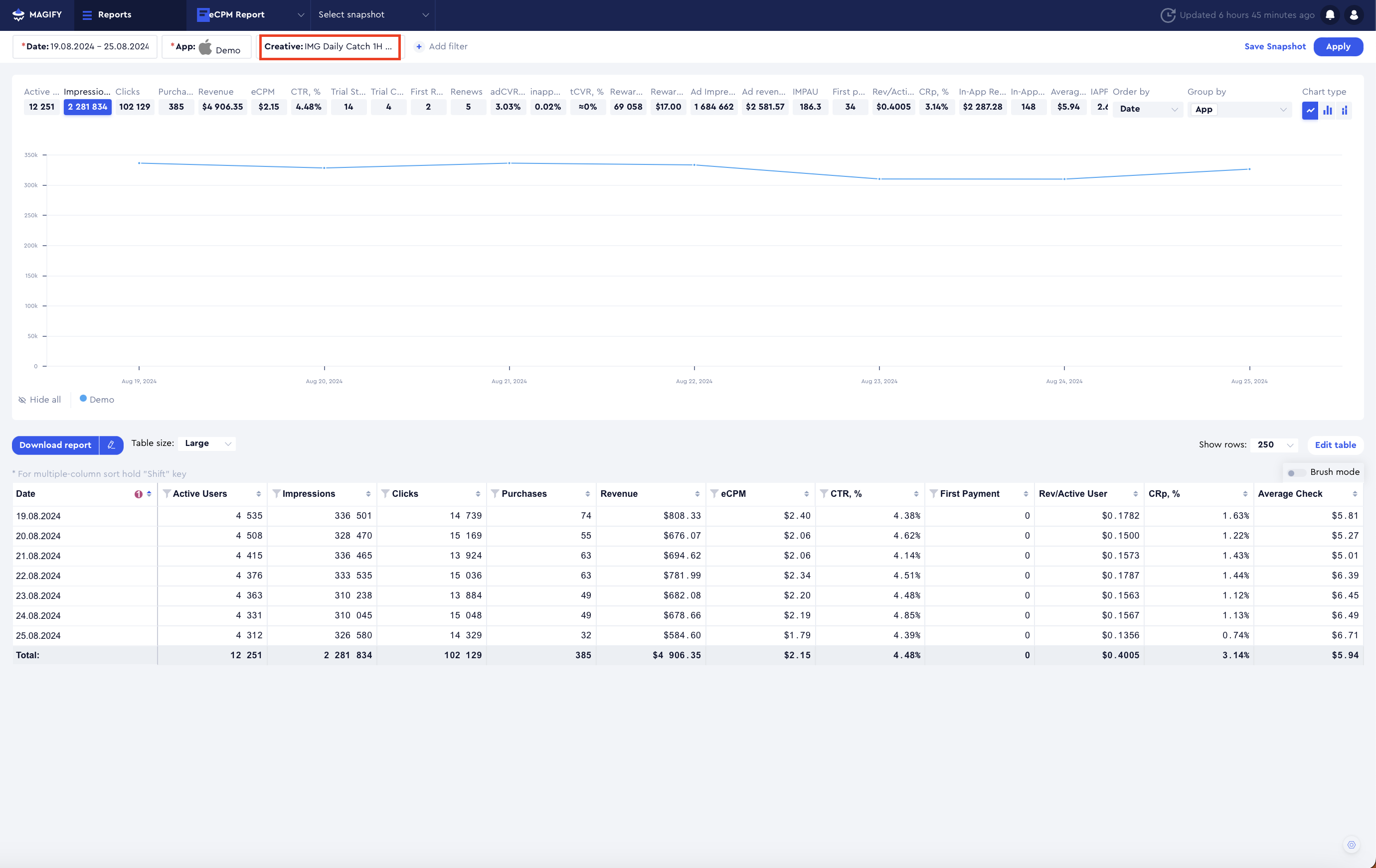
For example, it is incorrect to select both Nested Campaigns and Creatives simultaneously. Creatives are an attribute of Parent Campaigns, and filtering by both levels at the same time will result in no data being displayed.
This happens because filtering by both Parent and Nested Campaign levels simultaneously creates a data conflict.
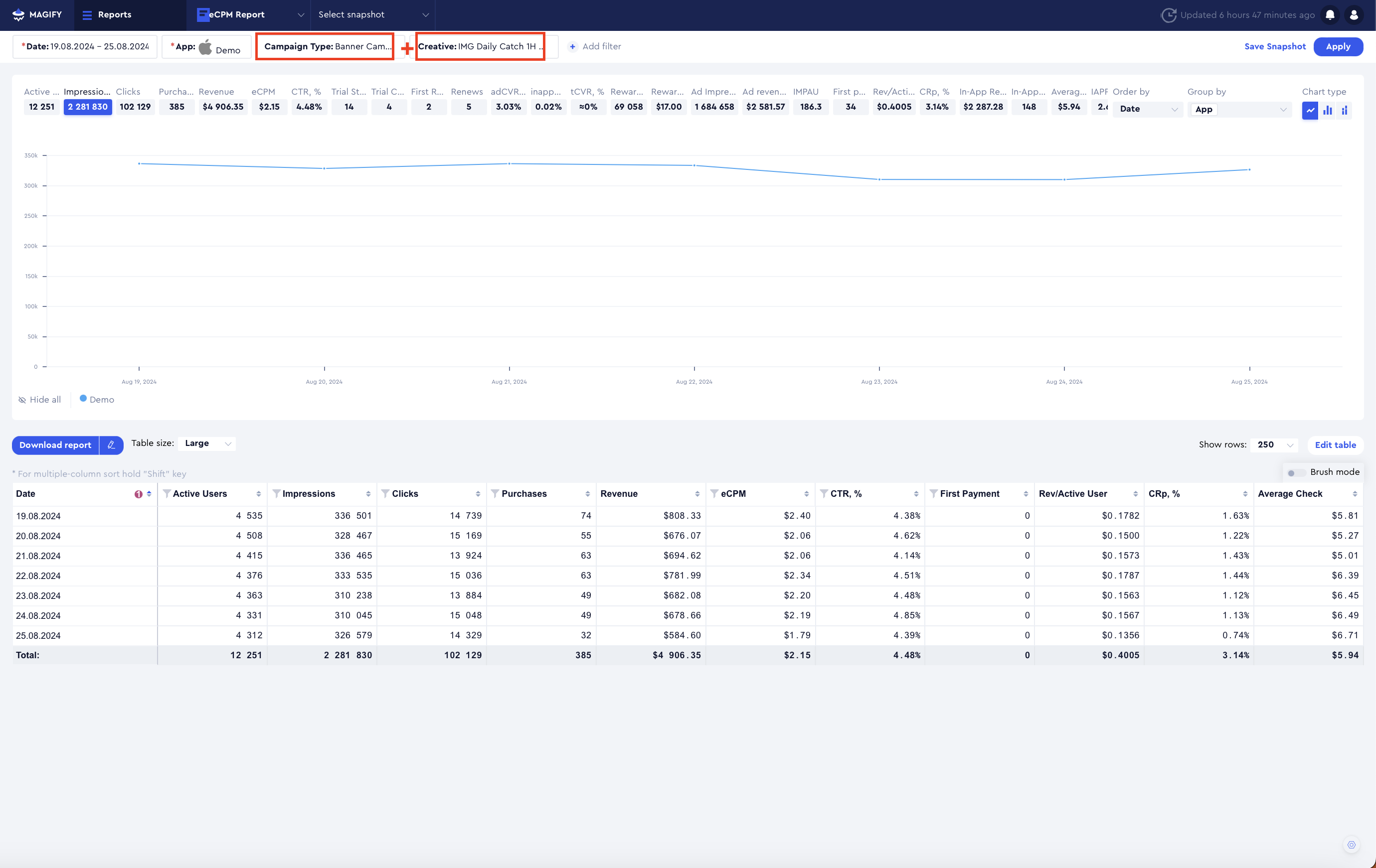
This situation can be resolved in two ways:
- Remove the Campaign Type filter. Since selecting a Creative automatically includes all associated Parent Campaigns, additional filtering by Campaign Type is unnecessary.
- Manually select the appropriate Parent Campaign types. Ensure that the selected campaign types do not start with "Nested", as only Parent Campaigns should be included in this case.
Working with Campaign Names
In Magify, the campaign name serves as the fundamental unit for collecting campaign statistics. To ensure the most accurate data collection, it is best to work directly with campaign names rather than relying solely on associated metadata.
For easier navigation and filtering, we recommend using keywords in campaign names, allowing you to quickly find relevant campaigns among available filter values.
The Snapshots feature can also be used to save and share pre-configured filter selections with other users.